
Introduction
A Pricing Context declares what must exist — its Values and Components are named slots with nothing in them. A Pricing Module is what gives them meaning. Nothing is calculated until a module exists. The context establishes the vocabulary; the module supplies both halves of what a calculation needs — the constants and the logic. A Value gets its number here: a rate, a fixed fee, a tier threshold, something a formula can read. A Component gets its Conditions and its Billing Formula — the logic deciding which rule fires and what it computes from a Subscription’s properties and usage. The module holds no amounts. It holds rates and rules; a charge only comes into existence when a bill run applies them to a particular Subscription’s data. A module carries more than rules. It also holds decisions the context knows nothing about: whether a customer can subscribe to it at all, whether it produces a base subscription or an add-on, whether it bills upfront or in arrears, whether it appears on the customer portal, and which Billing Configuration governs its cycle. A module doesn’t have to define every component. A Calculated component left with no rules simply evaluates to zero at bill run — no error, nothing skipped. That is what makes narrow modules possible: one that only sets rates, one that only sets tax, one that only adds a surcharge. Each fills its own subset and leaves the rest untouched. A module is put to work in one of two places:- On a Subscription. A module with the Plan flag ticked is subscribable. A customer subscribes to it, a Subscription is created, and that module’s rules rate its charges every cycle.
- On a Billing Account. Attached by an admin rather than subscribed to, where it calculates the bill’s totals from the summed values of the Subscriptions on the account. See Single vs. Composite Billing Accounts.
Pricing Module Fields
Every Pricing Module has the following fields:Visibility and Plan are independent. A module with Plan unmarked but Visibility set to Public still appears in the customer’s portal, but with no subscribe button and no “Contact Us” prompt—since no one, not even an admin, can create a subscription from it, there’s genuinely no action to offer.
Creating a Pricing Module
A Pricing Context is the prerequisite, set that up first: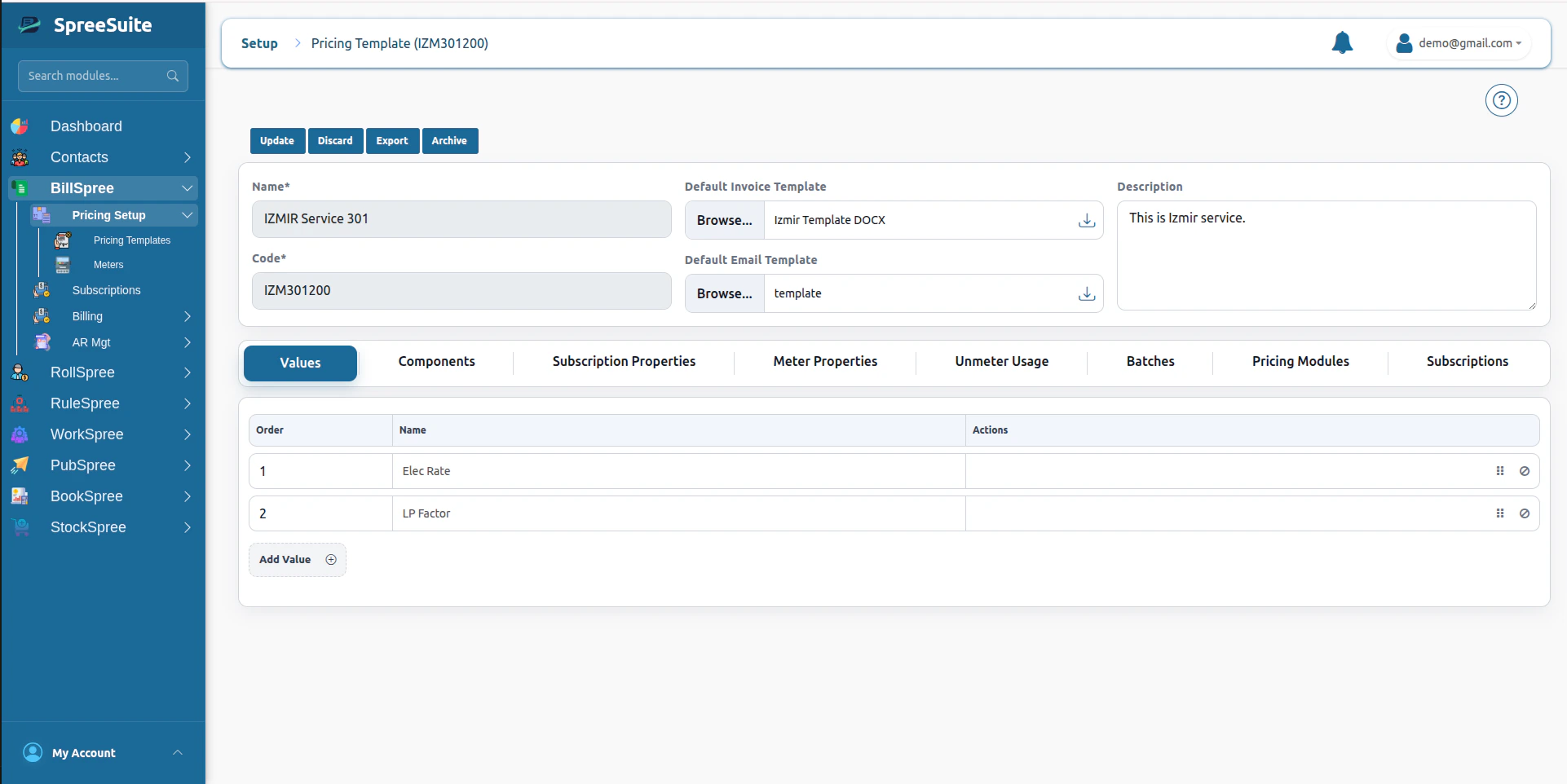
- Click on the Plan Variants tab.
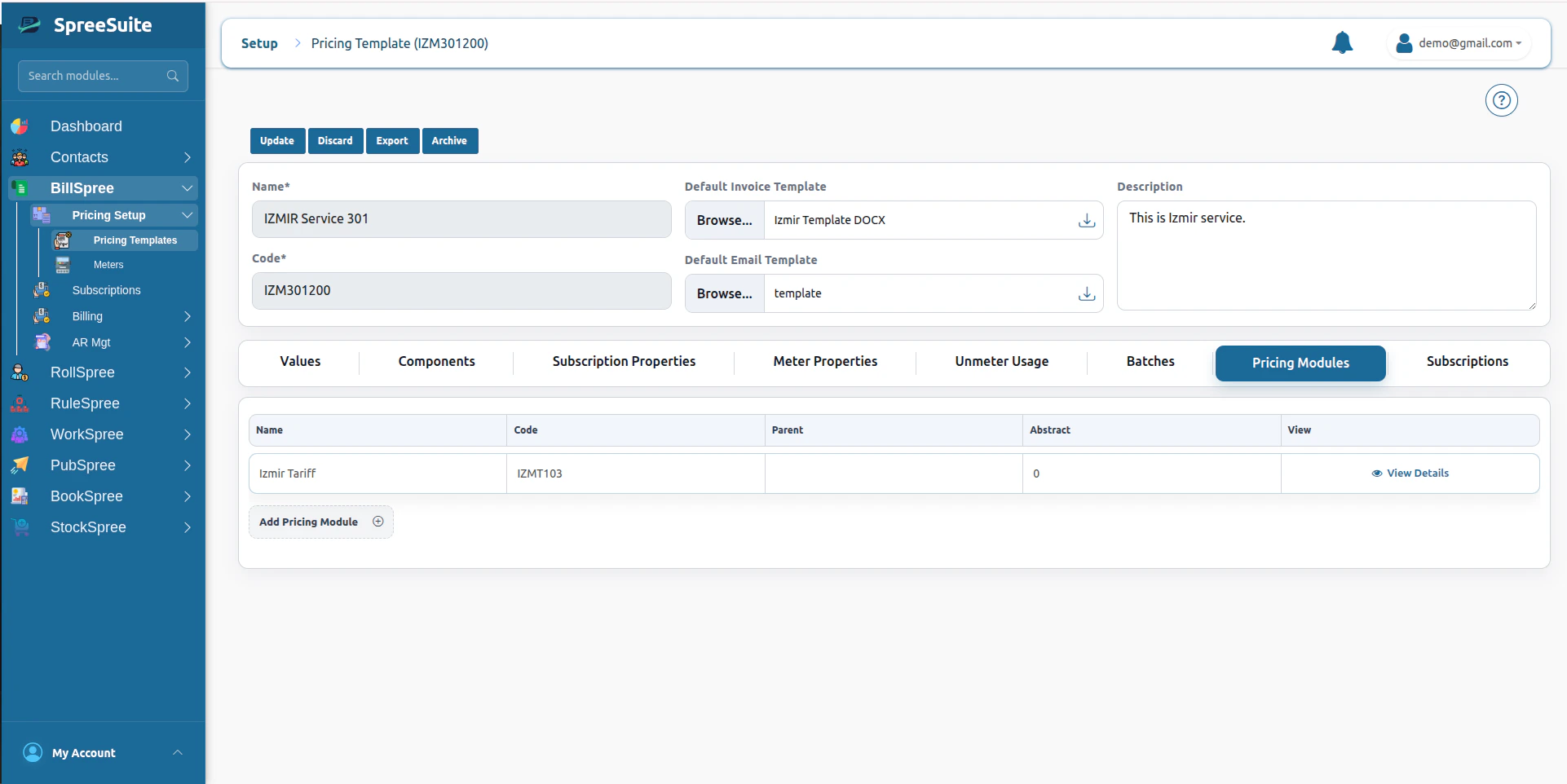
- Click Add Plan Variant and set the fields covered above (Name, Code, Label, Description, Pricing Module Type, Visibility, Plan check, Custom check).
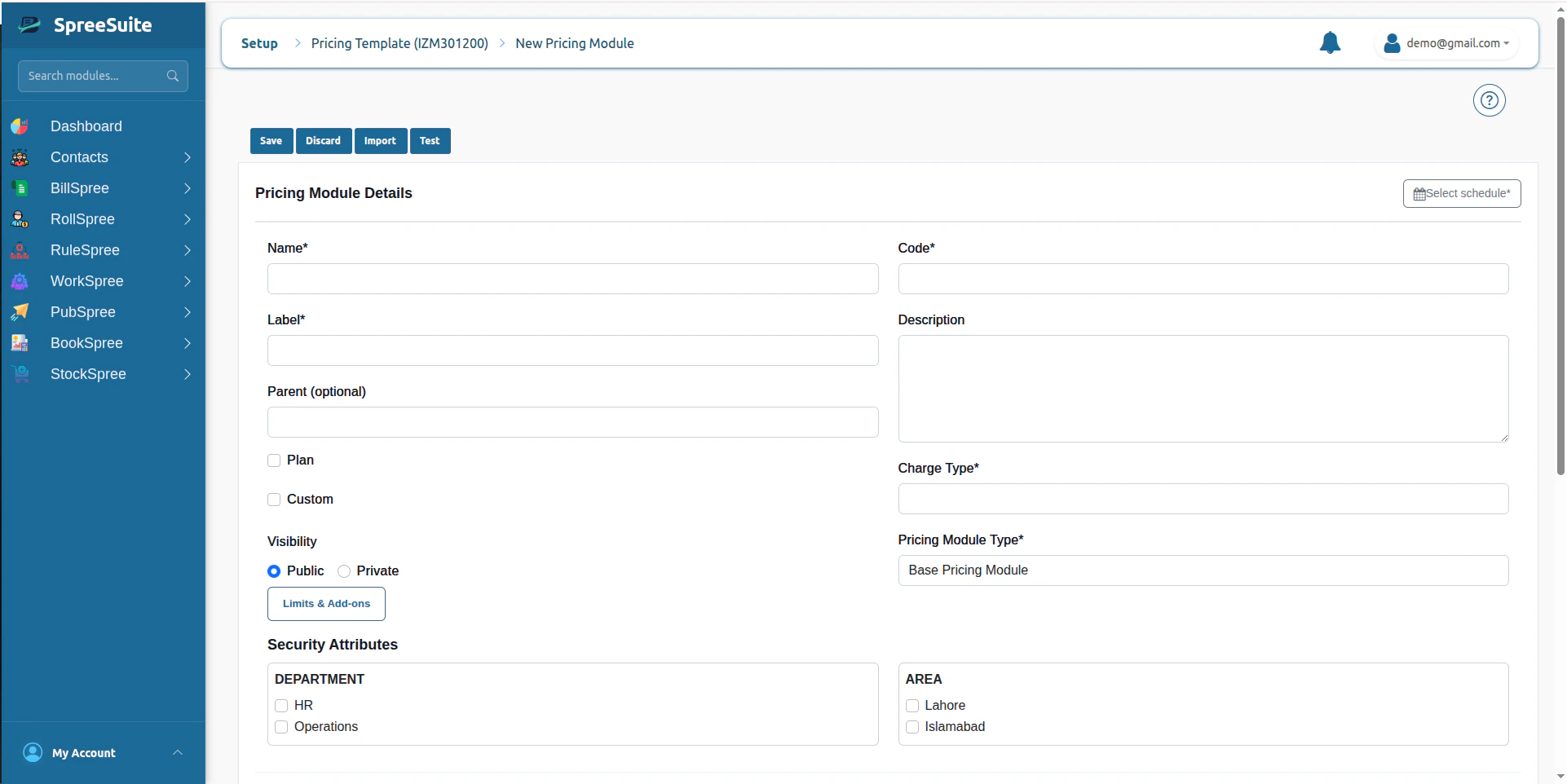
- Assign Security Attributes if this module needs to be scoped (see Security below).

- The Pricing Context’s Values and Components appear here as tabs—this is the workspace where the rest of this page applies.

Authoring Rules
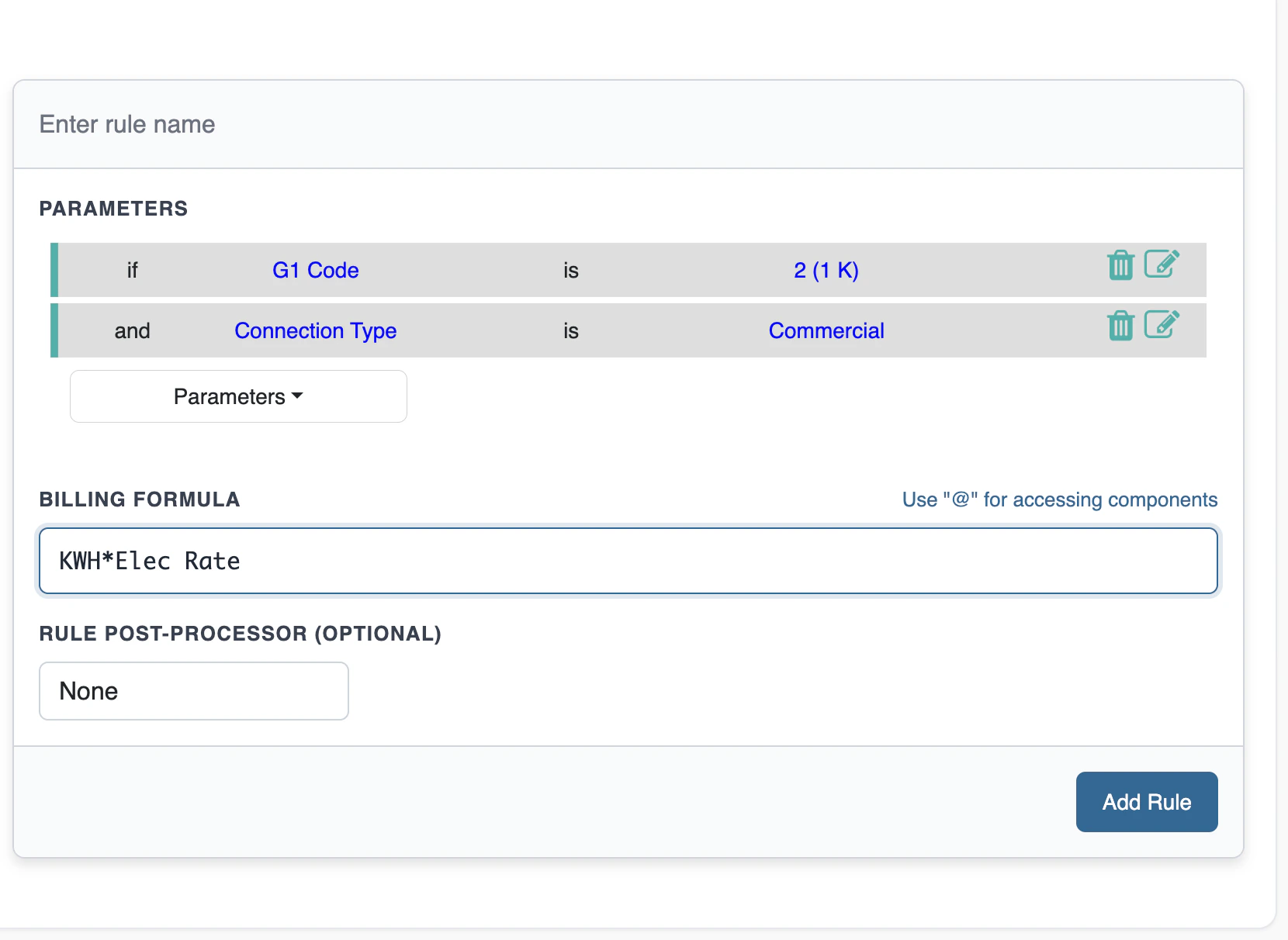
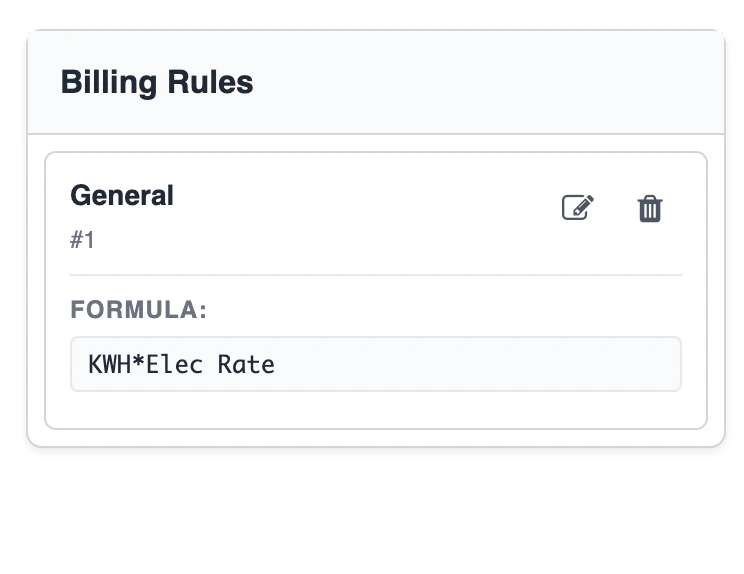
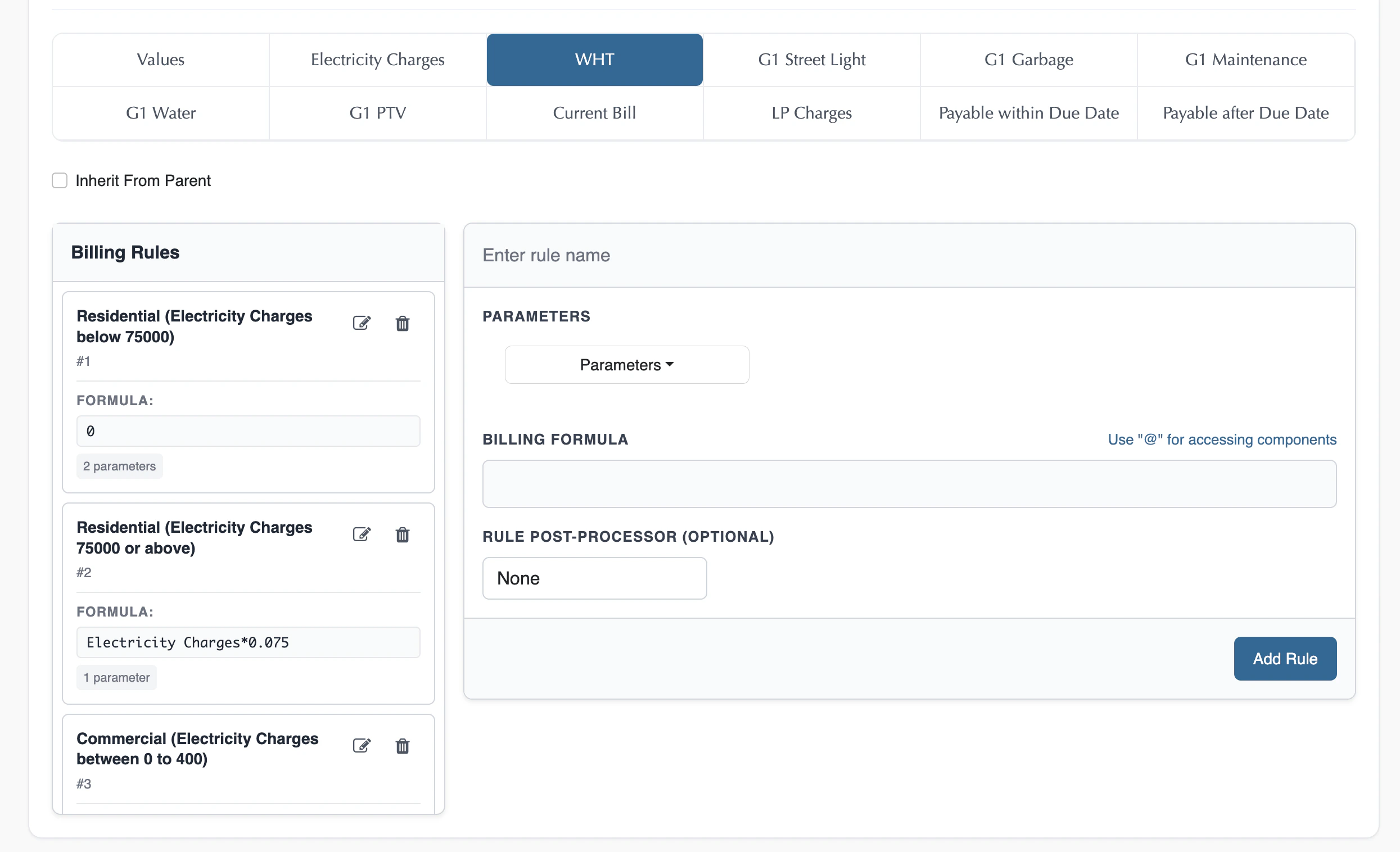
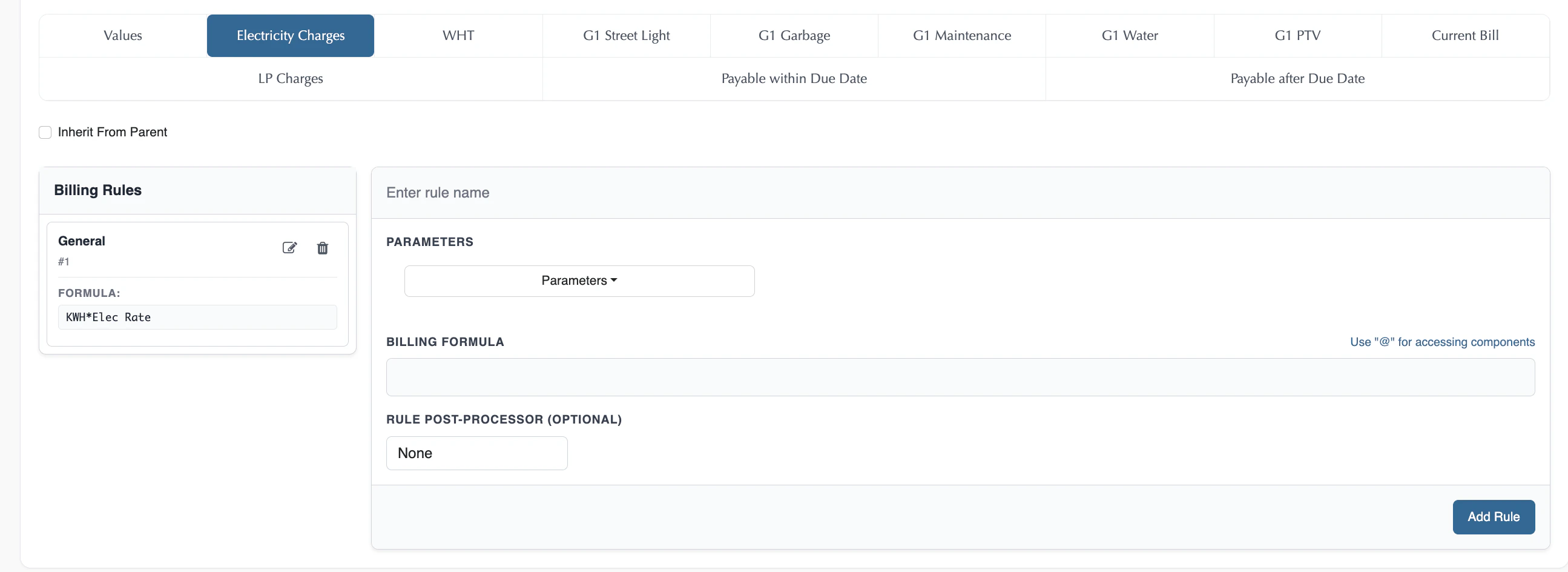
This is the one rule-authoring mechanism used by every Pricing Module with Calculated components—Charges Rules, Base Plans, Add-On Plans, all of it. The specific module types described below are specializations of this same mechanism, not separate systems. Which components you can write rules against isn’t a module’s choice. Calculation Type is decided once, on the component, back on the Pricing Context. Only components marked Calculated there appear as tabs in the module builder; Manual components never show up here at all—their values are entered later, on each draft bill, when a bill run is executed. Each visible component, on its own tab, holds a sequence of rules. A rule has three parts: Conditions, a Billing Formula, and an optional Rule Post-Processor.There’s no completeness check on any of this. A Module, even one marked Plan and subscribed to by real customers, can have a Calculated component with zero rules defined. At bill-run time, that component simply evaluates to 0—no error, nothing skipped, just a zero charge.This is what makes any narrowly-scoped module possible at all, you can create a module that fills in any subset of components and leaves the rest untouched, with no requirement to complete the rest. Rate Card, Charges Rules, and Tax Module (below) are just the three familiar examples of this, not a special or exhaustive list, any other partial combination is just as valid.
Conditions (optional)
A rule with no conditions always applies. When present, a condition can reference:- Subscription Properties — List-type properties show a picker of their defined values; Number-type properties take a min and max to define the matching range. This includes the special, automatically-generated properties every context carries, such as Date and the per-Meter-Property estimation flag.
- Usage — metered or unmetered usage inputs.
- Components — other components’ calculated values, subject to the Order constraint described under Component Chaining below.
- Example:
IF Subscription SLA == "Gold" AND IF Customer Region == "Europe"
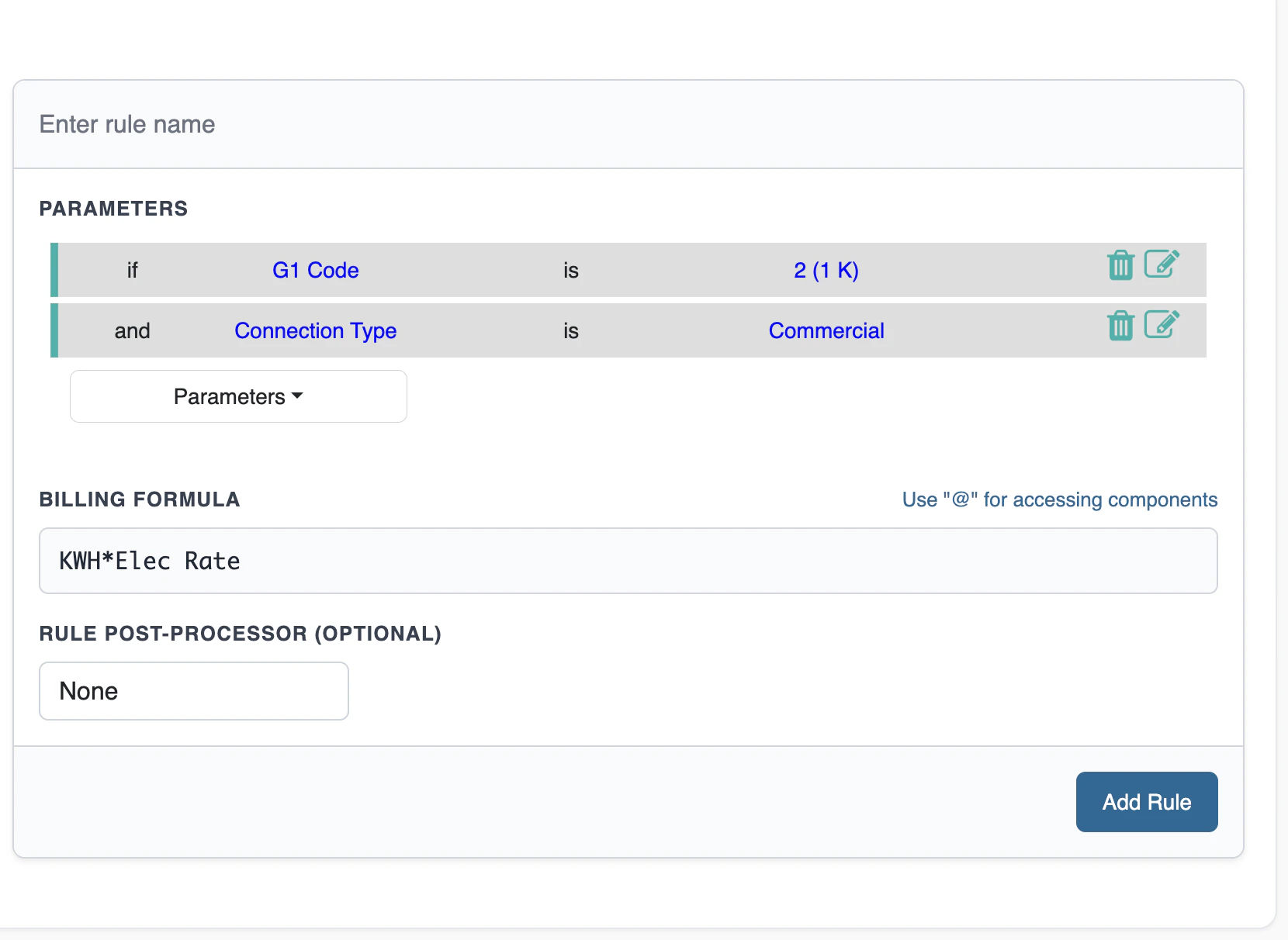
Billing Formula
The formula computes the component’s value once its rule’s conditions are satisfied. It can reference the same set as conditions—Subscription Properties, Usage, Components—plus a set of special variables the engine supplies at run time:- Example:
Base Rate * 0.90(a 10% partner discount).
Proration
There is no separate proration setting to switch on. Proration is expressed in the formula itself, using Active Days and Cycle Days. A subscription that starts, is reactivated, or is deactivated part-way through a billing period should not be charged a full period’s fixed fee. Scale the charge by the fraction of the period the subscription was actually active:- Example:
(Active Days / Cycle Days) * Base Rate
Cycle Days / Cycle Days, so the formula returns the full charge and needs no special case. The same pattern applies to any fixed component—standing charges, service fees, minimum charges.
Metered components don’t need this. Consumption is billed from the delta between meter readings, so a subscription active for part of a period naturally consumes less and bills less. Apply proration to fixed and recurring components, not to usage-driven ones—doing both would discount the same partial period twice.
Rule Post-Processor (optional)
A final step applied to the formula’s evaluated result:- Ceil — rounds the result up.
- Floor — rounds the result down.
- Power — raises the result to a power you specify.
Multiple Rules: OR Logic, First Match Wins
A component can hold more than one rule, shown in sequence in the builder. Rules are evaluated top to bottom; the first rule whose conditions evaluate to true is applied, and later rules in the sequence are not evaluated. This is why multiple rules are described as connected by OR: a component’s value comes from whichever single rule matches first, not from combining every matching rule.Component Chaining
To build progressive tax structures, surcharges, or composite discounts, a rule can reference previously calculated components as dynamic variables, in both conditions and formulas. “Previously calculated” is determined by each component’s Order, set on the Pricing Context—a component can only reference components earlier in the Order sequence, never a later one. This guarantees every chain of calculations resolves in a single forward pass, with no circular references possible.- Example: A “VAT Tax Charges” component that evaluates
(Base Charges + Electricity Consumption Charges) * 0.15.

Test Plan
Runs a module with sample inputs and shows each component’s result, before it’s used in live billing.- Open the Plan screen for the module you want to check.
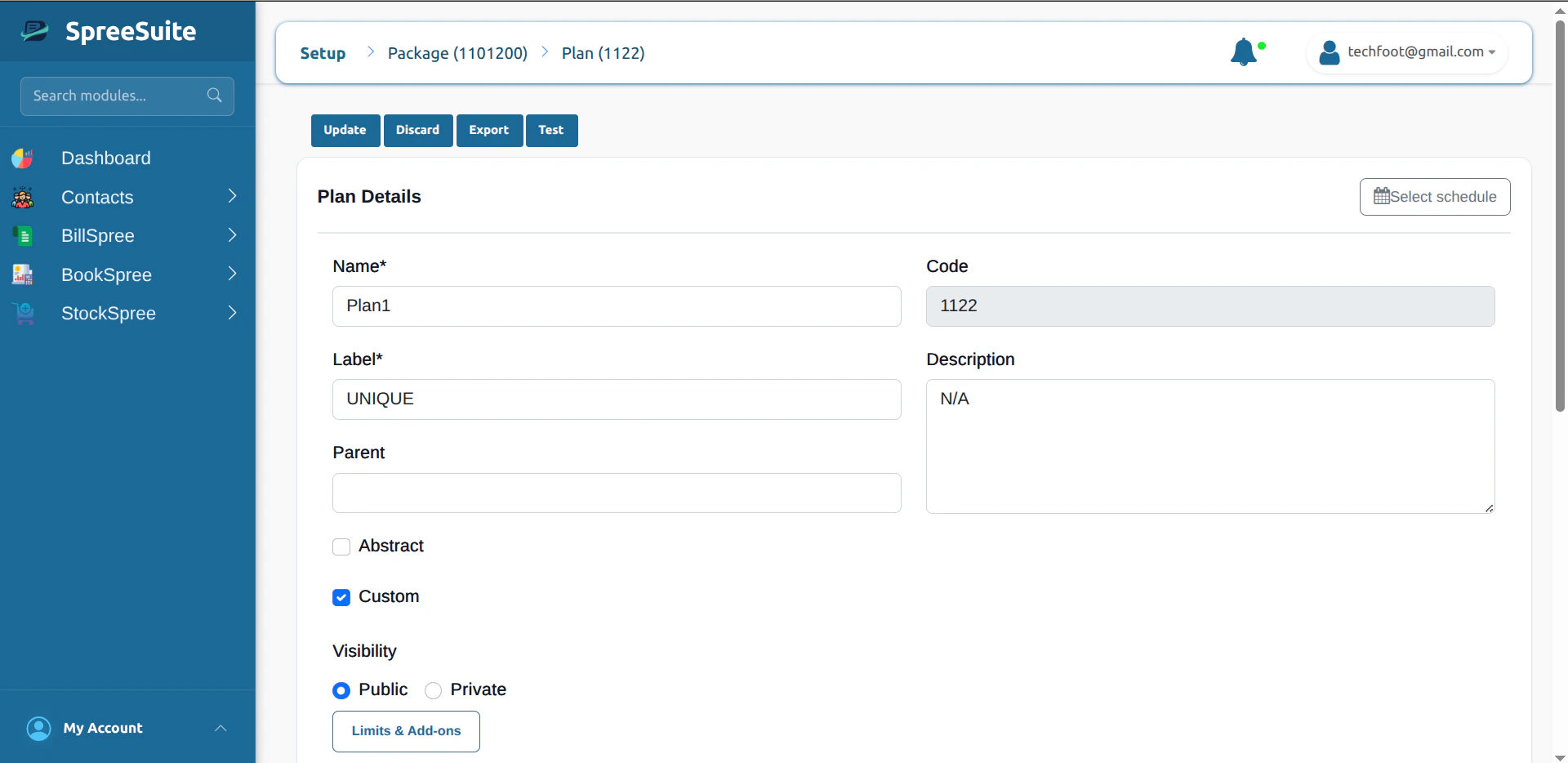
- Click Test in the header (alongside Update, Discard, and Export).
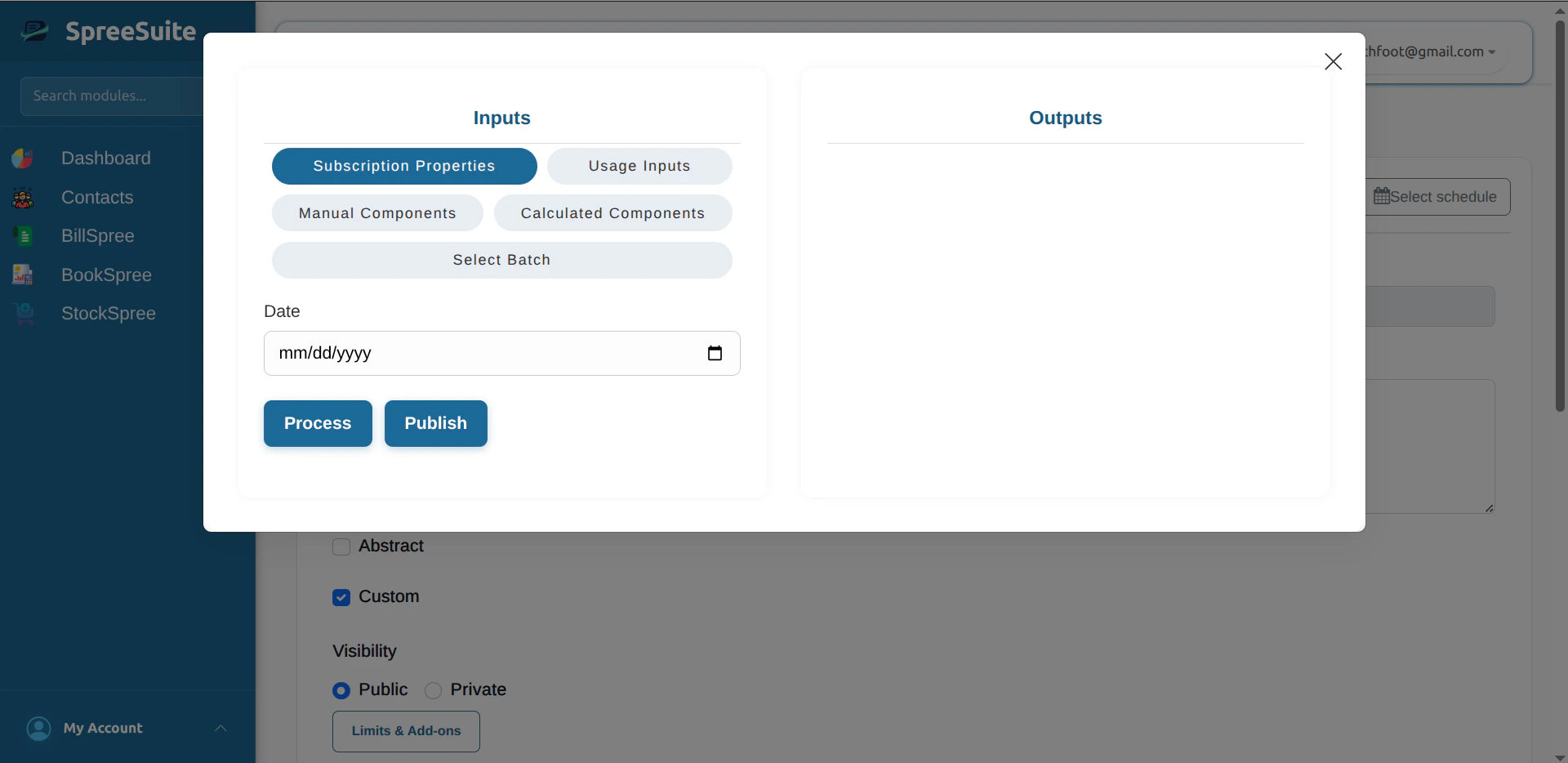
- Enter sample values for the Date, Components, and Usage inputs (and anything else the context defines).
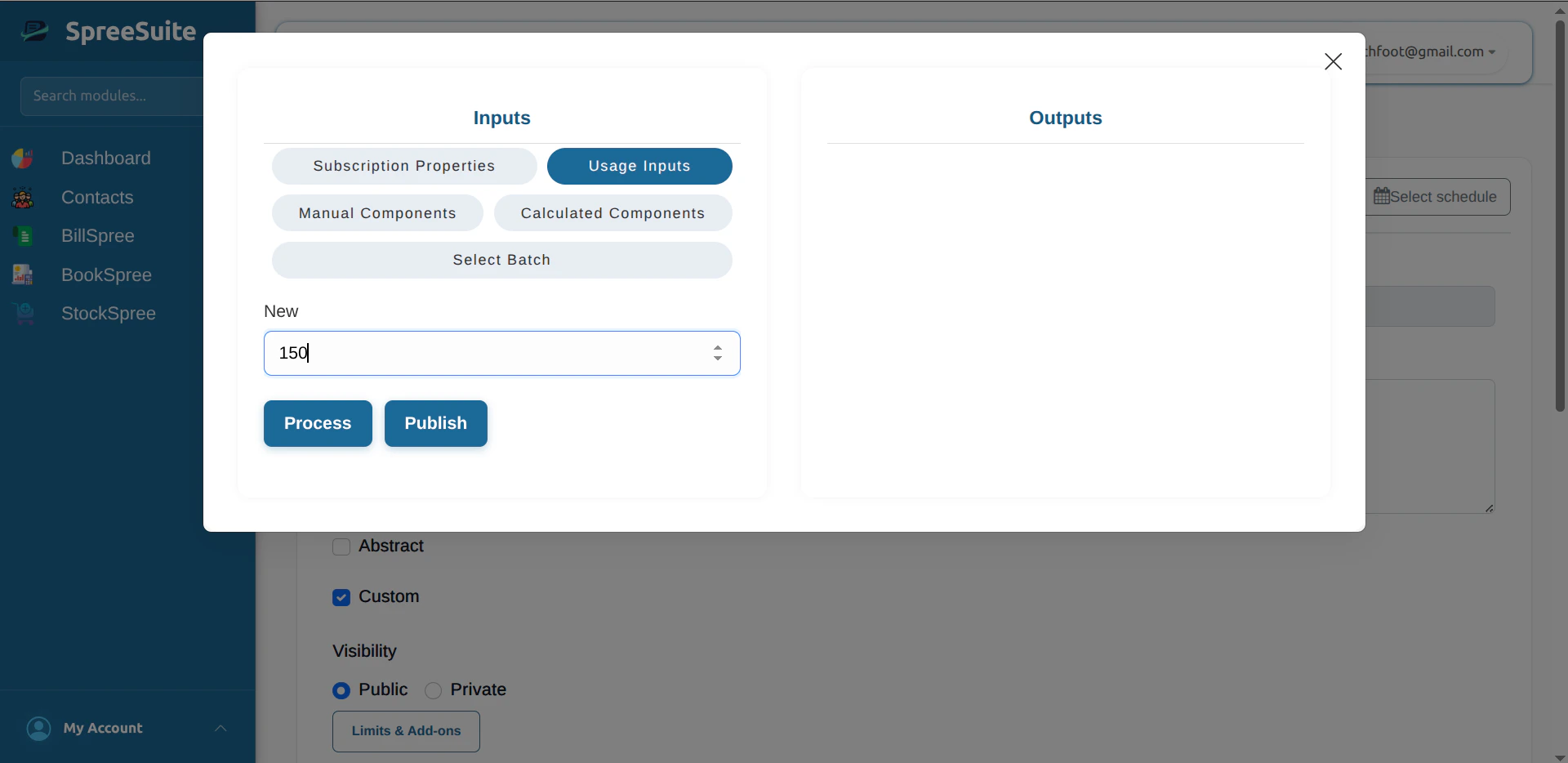
- Click Process to calculate the bill for those inputs.
- Read the Outputs: each component shown with the amount its conditions and formula produced.
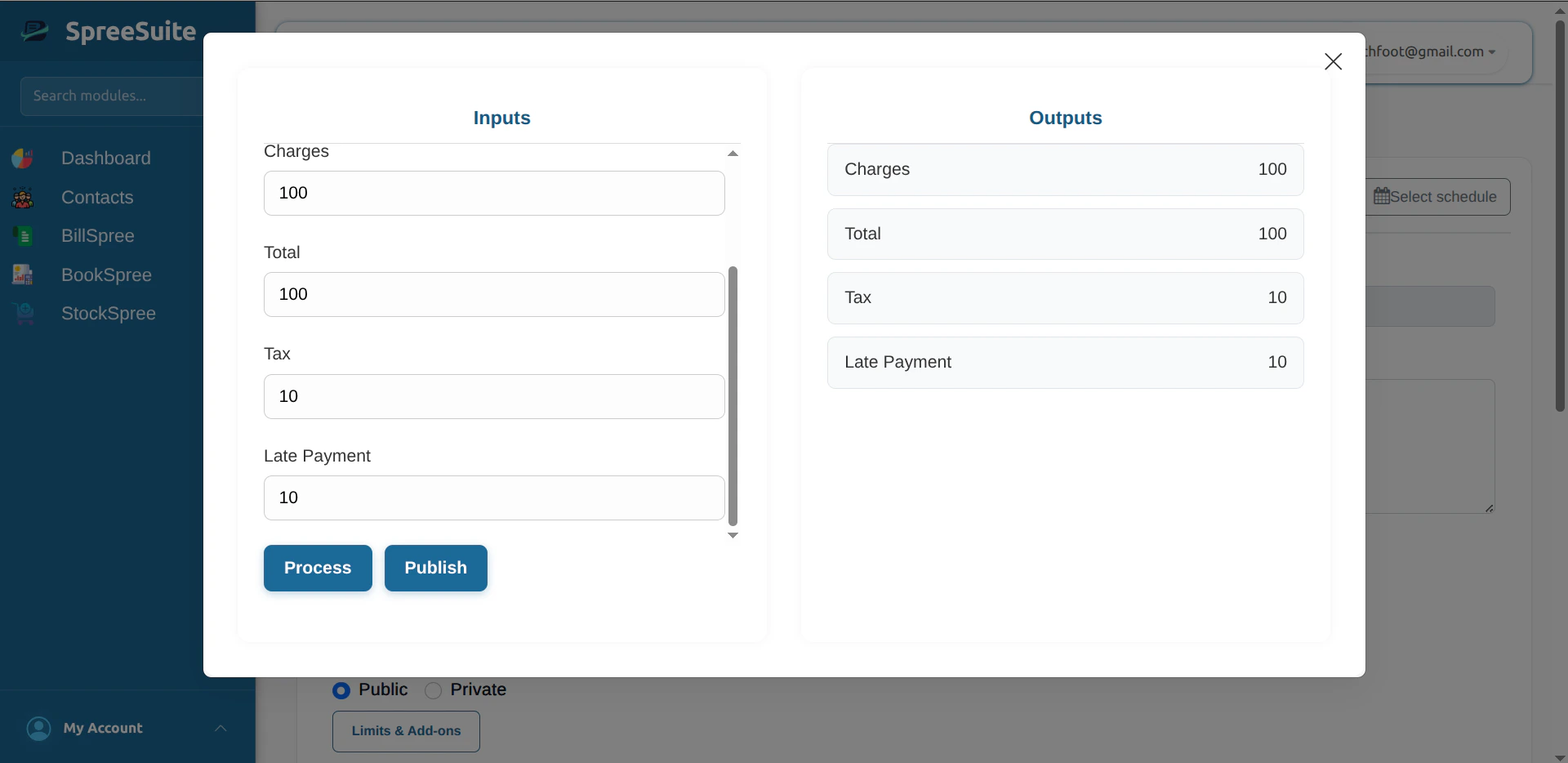
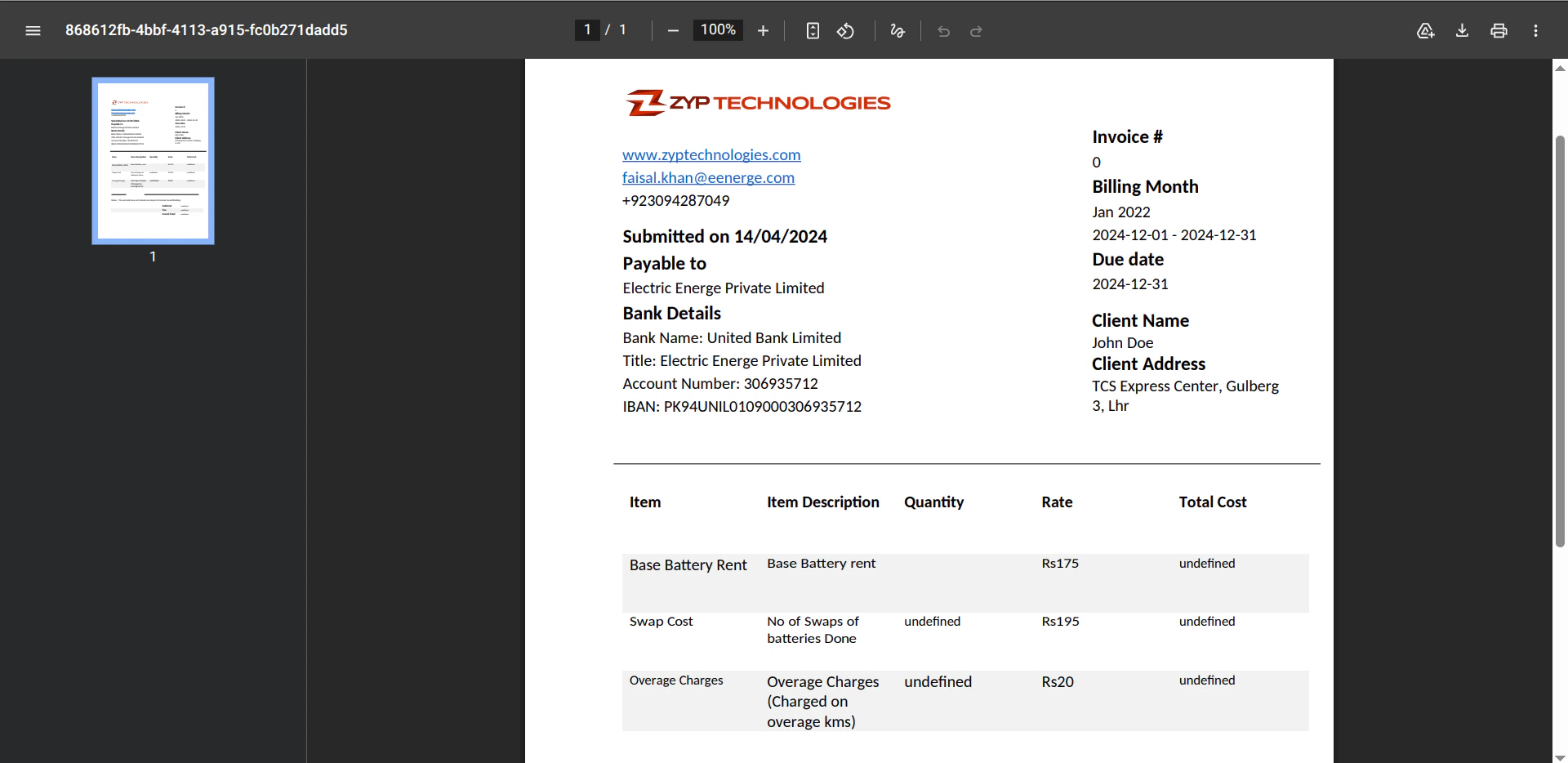
- Click Publish for a PDF of that test run, using the bill template from the Pricing Context. If none is attached, fix that on the template first.
Prepaid and Postpaid
Billing Timing is a direct field on the module, required when Plan is marked. Two values: Prepaid — pay first, then use. Subscribe, pay, then use the service. When the balance runs low or out, subscribe again. Pay → use. Postpaid — use first, pay later. Use the service through the period, get billed at the end for what was used, pay by the due date. Use → bill → pay.Billing Configuration
A separate entity from the module itself—created independently, then attached to it. Required when Plan is marked. Like Rate Cards and Charges Rules, it’s reusable: the same Billing Configuration can be attached to multiple Plans rather than creating one fresh per Plan. See Billing Configuration for the full model—bill-run timing, dunning, and late payment.Tracking Usage
Two ways usage gets recorded against a subscription: During subscription creation — the amount is deducted and an invoice is generated and sent immediately. Via API — usage can be recorded programmatically at any time. The system stores recorded usage events and accumulates them for the next billing cycle.Modeling Patterns, Not Object Types
Rate Card, Charges Rules, Tax Module, Plan, Composite Plan, and Unified Base Plan are not separate object types. There is exactly one object: the Pricing Module. Everything below is a business name for a particular combination of the fields already covered above — which components are filled in, whether Plan is checked, and whether components are authored natively or inherited from another module. The system never stores a “Rate Card” or a “Plan” differently from any other Pricing Module; it’s the same row every time, just configured differently.
Non-subscribable building blocks (Plan unmarked)
Set Visibility to Private and leave Plan unmarked, so the module is never shown on the portal and never subscribable. Which components you fill in decides what people call it:
Example: Rate Card 1 sets the per-kWh residential rate, Rate Card 2 sets the commercial rate — same Pricing Context, same Charges Rules module, different Rate Cards.
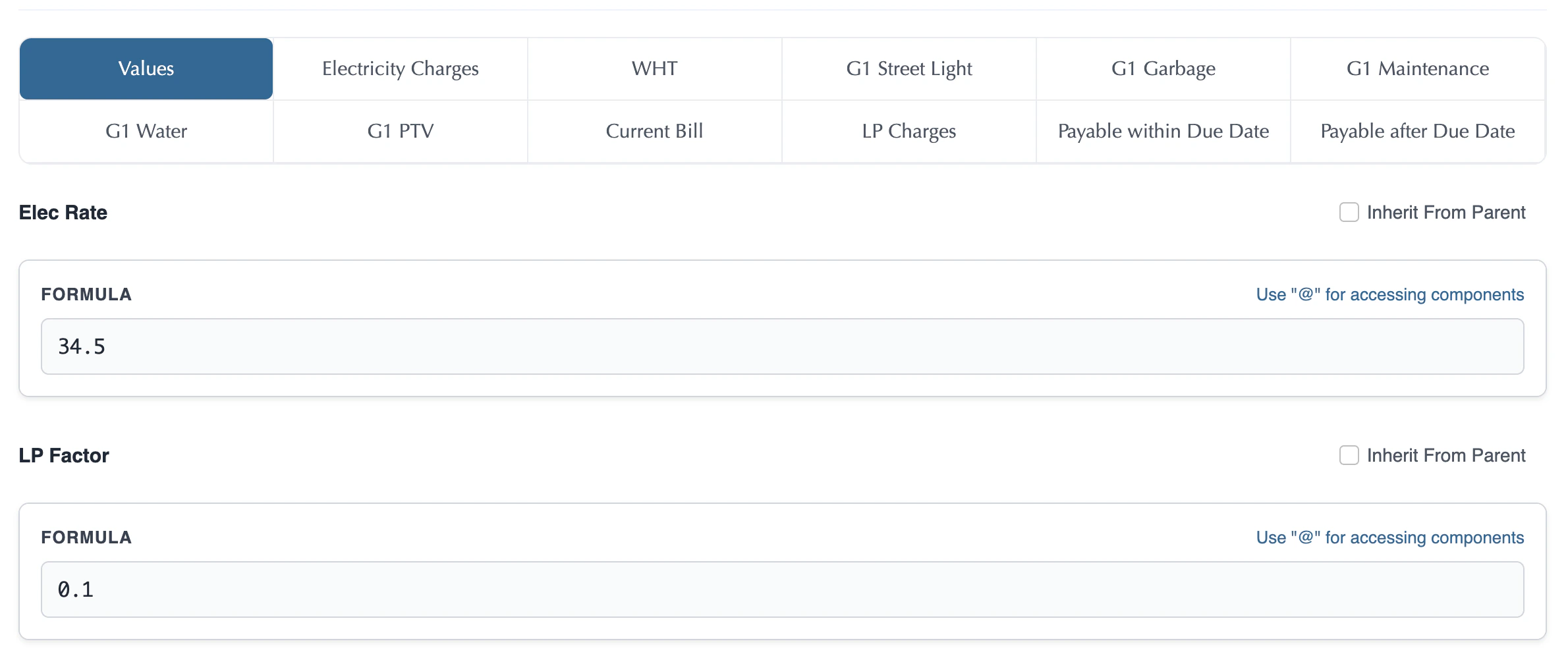
Filling in Values happens on the Values tab: every Value defined on the context appears with a plain input field, where you enter the actual constant for that placeholder.
Composing a Subscribable Plan from Building Blocks
Check Plan to make a module subscribable. Reuse works through per-component inheritance: for any component, instead of authoring its rules natively in this module, you can point that component at another module’s same component and inherit its rules wholesale. This is a live reference, not a one-time copy—editing the source module’s rules later updates every module that inherits from it automatically. This only works between modules built on the same Pricing Context, since a component’s identity is scoped to the context that defines it. This choice is made independently per component. You can inherit every component from other modules, author every component natively, or mix the two freely.- Composite Plan — the common name for a Plan composed mostly or entirely through inheritance rather than native authoring. Typical pattern: inherit all rate components from a Rate Card, all charge components from a Charges Rules module, and tax components from a Tax Module.
- Unified Base Plan — the other end of the spectrum: a Plan that authors both rate components and charge components natively, with no inheritance at all. Best when a Plan’s pricing is entirely self-contained.