
1. Introduction
Two things have to be calculated before a customer receives a bill: each Subscription’s charges, and the Bill’s own summary — its totals and tax. A Pricing Context is what makes both possible, through the Pricing Modules built on it. One context can carry many modules. The context itself holds no prices. It declares what must exist on whatever uses it; the user of the context supplies the actual values. A Value declared here gets its number from a Pricing Module. A Component declared here gets its rules from a Pricing Module. A Subscription Property declared here gets its value from a customer’s Subscription. A meter reading hook declared here gets its readings from that same Subscription. An Invoice Template declared here gets its merge values when a Bill Run finally generates a Bill. Every declaration here is an obligation on something else to fill it in — and only on things using this context, not any other: Values and Components are filled in by the Pricing Modules that use this context. A Value is a lightweight slot that only stores a number or a simple calculation on numbers; a Component is more like a function, carrying Conditions and a Billing Formula that can reference Subscription Properties, Usage, and earlier Components. Subscription Properties are filled in by the Subscriptions created when a customer subscribes to a Plan — a Pricing Module with the Plan flag ticked, which is the only kind a customer can subscribe to. The property is just a named slot here on the context—the customer’s actual value for it (their SLA Tier, their seat count) is captured on their own Subscription. Usage is filled in by those same Subscriptions. Metered Usage and Unmetered Usage are just the tracking hooks defined here on the context—the actual readings and consumption amounts accrue against a specific Subscription each billing period. The Invoice Template and Email Template are filled in by the Bills a Bill Run produces. They’re just the shared visual layout—the merge fields inside them ({partyName}, {KWH_currentReading}, {Electricity Charges}) only have real values once a Bill Run actually generates a Bill for a Billing Account in a given period. Every Bill rendered under this context uses this same template.
None of this crosses context boundaries. A Subscription created under a Plan built on a different Pricing Context doesn’t share this context’s Subscription Properties, Values, or Components—each context’s declarations are only ever filled in by the Plans and Subscriptions that use it.
With one exception. Because a Billing Account can hold Subscriptions built on entirely different contexts, every context is required to declare the same eight predefined components — Subtotal, Late Payment, Net Total, and Tax 1–5. That shared set is what makes a consolidated bill possible at all: whatever a context defines privately, it must always expose those eight, so Subscriptions that compute nothing alike can still be summed into one total. See The Eight Predefined Components below.
Two places a Pricing Module is used
A Pricing Module built on this context can be attached in two different places, and the context governs both:- To a Subscription. A module marked Plan is subscribable—a customer subscribes to it and a Subscription is created. That Subscription is the billable unit, and its charges are this context’s Components, calculated by that module’s rules.
- To a Billing Account. A Billing Account is what actually receives an invoice. It carries a Pricing Module of its own, attached by an admin rather than subscribed to, which calculates the bill’s totals from the summed values of the Subscriptions inside it. See Single vs. Composite Billing Accounts.
2. Setup
Creating and configuring a Pricing Context is done directly in the admin console. Below is the step-by-step flow of how to navigate the context builder interface and configure each core structural pillar.Step 1: Navigation
Navigate to: BillSpree → Billing Setup → Pricing Contexts. This displays the list of all existing Pricing Contexts. From here, you can create, edit, archive, or open a context to manage Pricing Modules and billing setups. Click on the New button in the upper right corner of the Pricing Contexts screen to launch the context creator.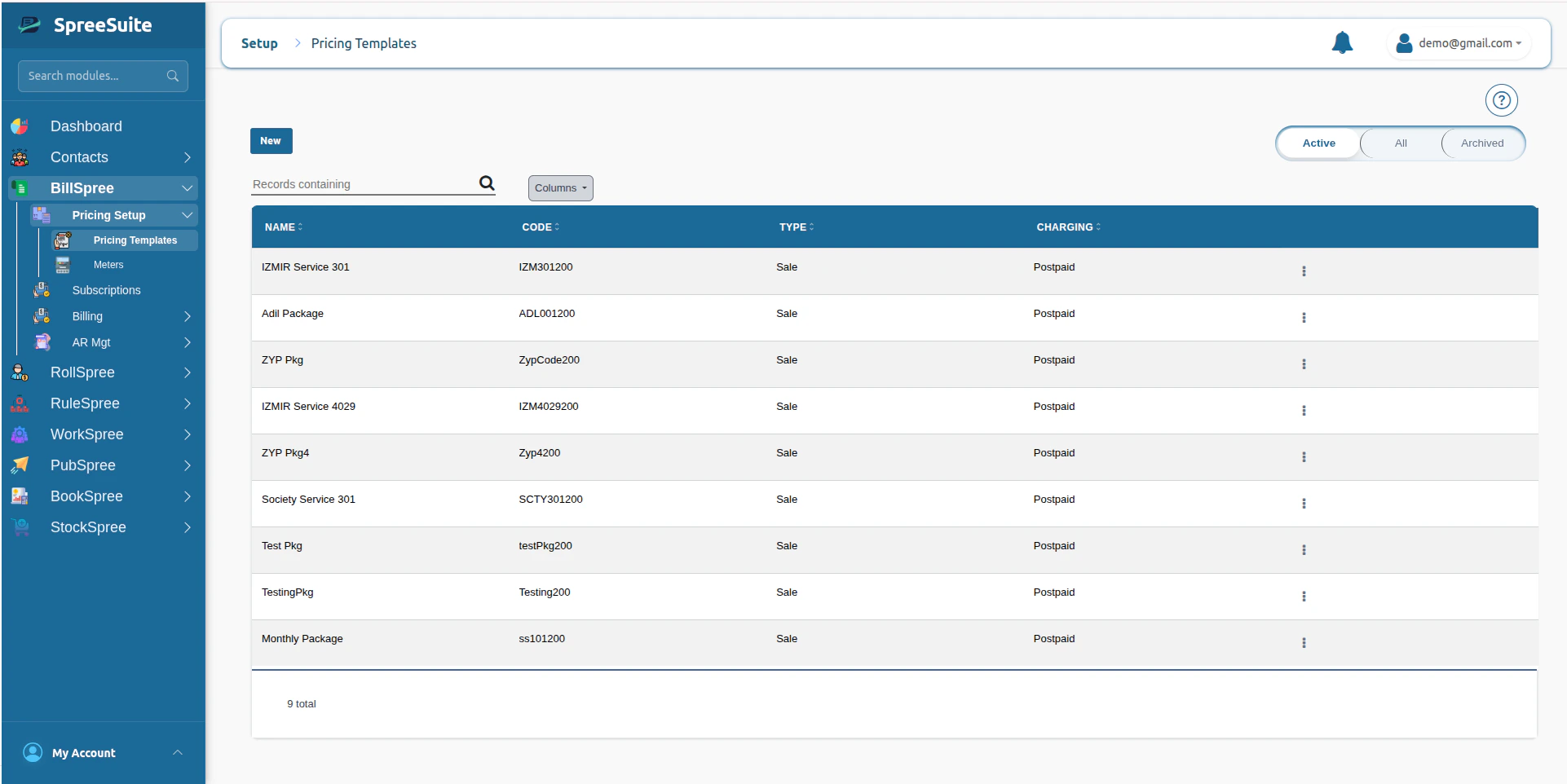
Step 2: Setup Identity
Before opening any tab, configure the core identity of the Pricing Context itself:- Identity Information: Define general metadata such as Name, Code, and Description to identify the context.
Pricing Contexts do not carry Security Attributes / ABAC scoping of their own. A Context is visible to anyone with admin access regardless of region, department, or tenant; security scoping only applies once you get to the Pricing Module level (Rate Cards, Charges Rules, Plans).
Step 3: Setup Values (The “Values” Tab)
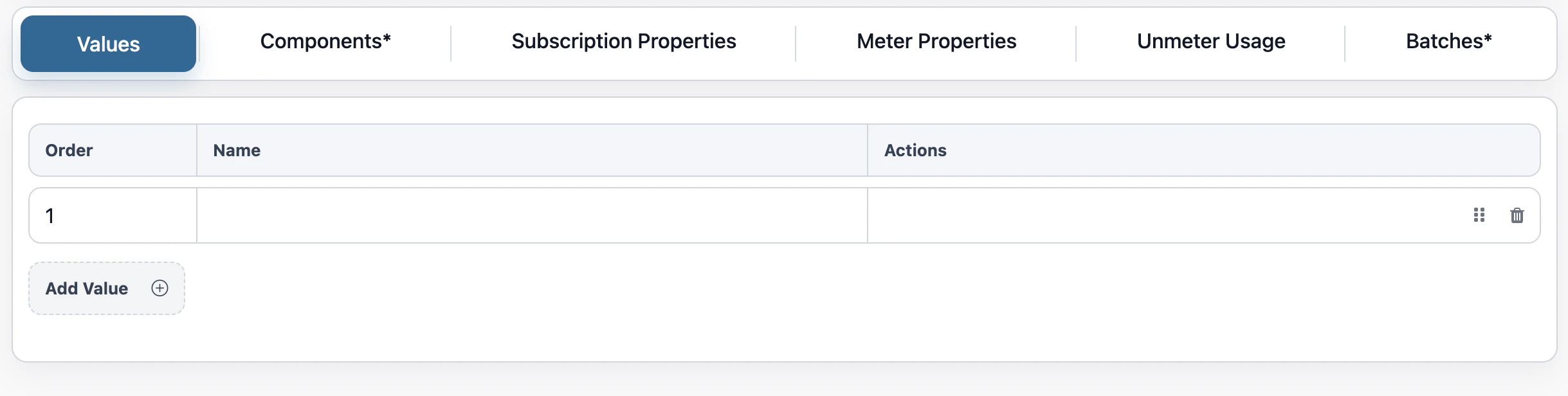
Click on the Values tab. Here you define your Values—lightweight slots that only store a number or a simple calculation on numbers, with no conditions and no formula attached. Each entry has just an Order and a Name; the actual monetary value is assigned later, when building a Pricing Module. These names should align with the fields used in your attached Invoice Template.- Examples: a fixed access fee like
Platform Access Fee, a consumption rate likePer-GB Storage Rate, or a tier threshold likeFirst 100 API Calls.
Step 4: Setup Components (The “Component” Tab)
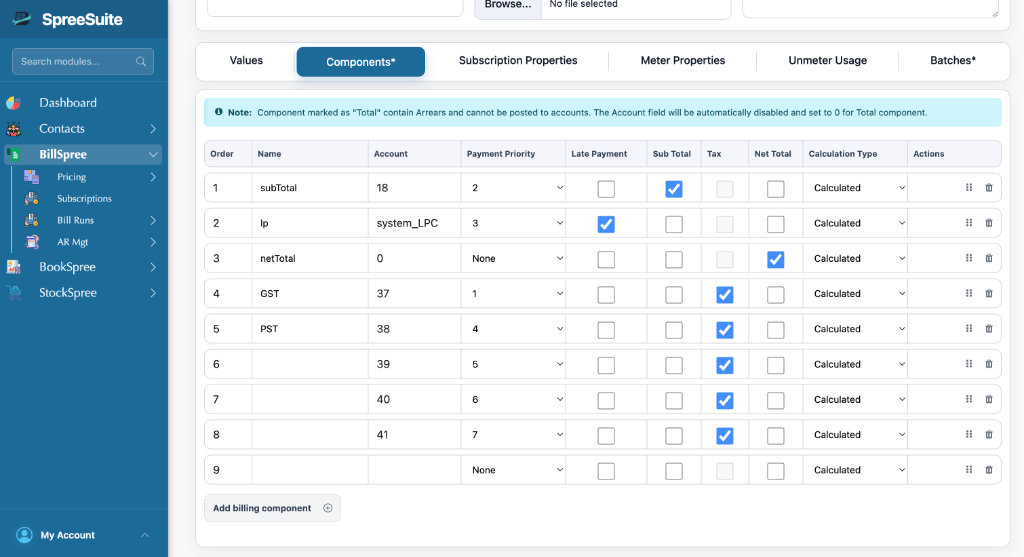
Click on the Component tab. This is where you define your Components—function-like building blocks that can carry Conditions and a Billing Formula. A Component’s Conditions can reference Subscription Properties, Usage, and earlier Components (by Order); its Billing Formula can reference the same set. Only the component’s name and structural properties are set here on the context—the actual Conditions and Billing Formula are authored later, when building a Pricing Module. Multiple components can combine to produce a single bill line item; a component is a calculation unit, not necessarily a line item itself. Each component has the following fields:
Component Rules and Constraints
To ensure billing integrity, several rules apply when setting up components: 1. The Eight Predefined Components Every Pricing Context carries eight predefined components, whatever else is defined on it: Subtotal, Late Payment, Net Total, and Tax 1 through Tax 5. They are not optional and cannot be removed. Subtotal, Late Payment and Net Total are created with the context and always visible; all five Tax components exist from creation too, but only surface once you pick them (see Tax Components below). They are compulsory for a reason. Because they exist identically on every context, they are the only vocabulary a Composite Billing Account can sum across Subscriptions built on different Pricing Contexts. Without a guaranteed shared set, a consolidated bill would not be possible at all. They are also the components every bill needs regardless of what it is billing for—somewhere for service charges to total, somewhere for tax, somewhere a late charge can land. 2. Dynamic Payment Priority Assignment The system automatically assigns dynamic, sequential payment priorities to billing components. When you mark a component as Subtotal, Tax, or Late Payment, the system scans currently used priorities in the context and automatically assigns the next available priority number. This ensures a single Pricing Context can have multiple independent tax components without priority level clashes during payment settlements.Worked exampleA customer’s bill has a Subtotal of 150 (Priority 2), and a Tax component of 1,200 owed in total. The customer pays $1,000.The payment settles in priority order: 200. That 150 Late Payment charge in full, leaving 50 is applied against the 200 of tax unpaid—which carries forward as arrears.
system_Tax1 through system_Tax5), attached automatically and in sequence as you mark components with the Tax Flag. Once all five are in use, the tax checkbox on every other row is instantly disabled.
Because all five exist whether or not they were surfaced, summing tax across a Composite Billing Account is always safe. A context using no taxes contributes zero to the sum rather than being missing a component the other contexts have.
Why only Subtotal, Late Payment, and Tax postAt bill run time, Subtotal (service charges only) and any Tax components are calculated and posted, each to its own account, these are the actual billed revenue and tax transactions for the cycle. Late Payment is calculated at the same time but posts later, only once the grace period elapses with the bill still unpaid.Net Total is never one of the posting components. It’s a running display figure, Subtotal + Tax + Arrears (carried-forward unpaid amounts from prior cycles, already posted back when they were originally billed), and later + Late Payment once that’s applied. It aggregates amounts that are already posted independently by their own components, so it has nothing of its own to post.The same applies to any plain intermediate component used only to help calculate Subtotal (via Component Chaining)—it’s a calculation step, not something that posts on its own.None of this is automatic. Subtotal’s formula, Tax’s formula, Net Total’s formula, every Calculated component’s formula is explicitly authored by the user in the Pricing Module. The system can advise on how to write a rule, but it never writes or infers one for you.
These constraints make the Pricing Context more robust by preventing account mapping errors for system-calculated Totals, restricting tax distributions to the supported threshold, and enforcing conflict-free payment priorities.
Step 5: Setup Subscription Properties (The “Subscription Properties” Tab)
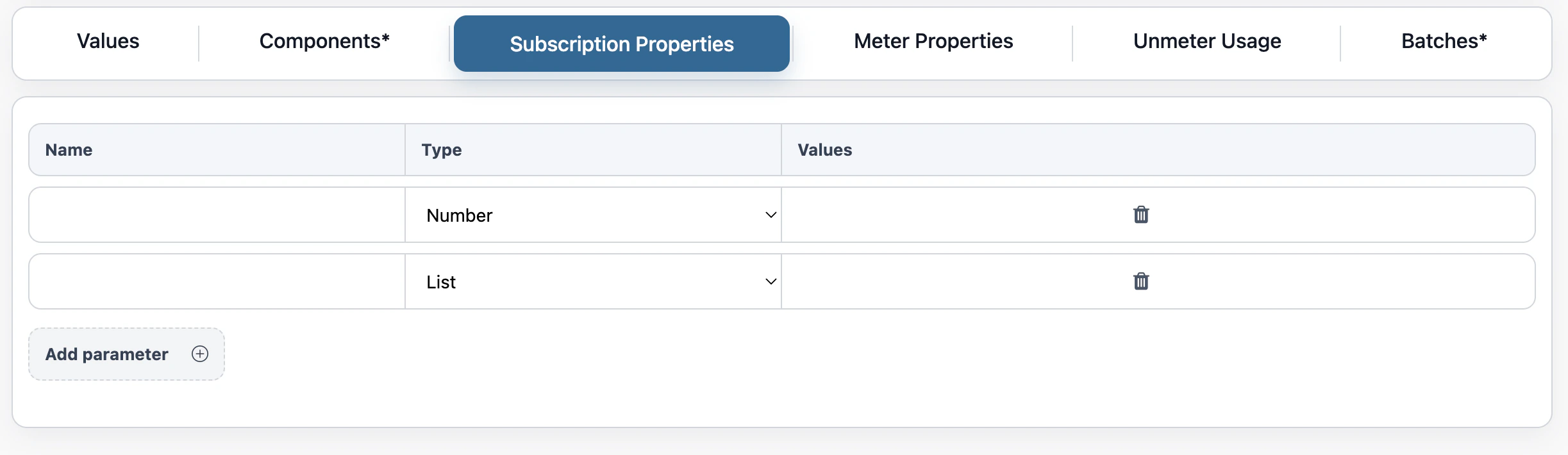
Click on the Subscription Properties tab. Here, you set up the dynamic data parameter fields (the “customer profile” hooks) required from the customer during checkout and used as inputs for your rating rules. Each property has a Name and a Type, and the type is one of:- List: A set of predefined string values to choose from (e.g.,
SLA_Level: [“Gold”, “Silver”, “Bronze”],Deployment_Region: [“US-East”, “EU-West”]). - Number: A numeric field (e.g.,
Committed_Seats,Included_API_Quota).
Special Subscription PropertiesTwo subscription properties are generated automatically, not defined by hand:
- Date — generated on every Pricing Context, regardless of what else is configured.
- A Yes/No property per Meter Property — generated automatically whenever a Meter Property is added (Step 6), flagging whether that cycle’s reading was estimated rather than actual.
Step 6: Setup Meter Properties (The “Meter Properties” Tab)
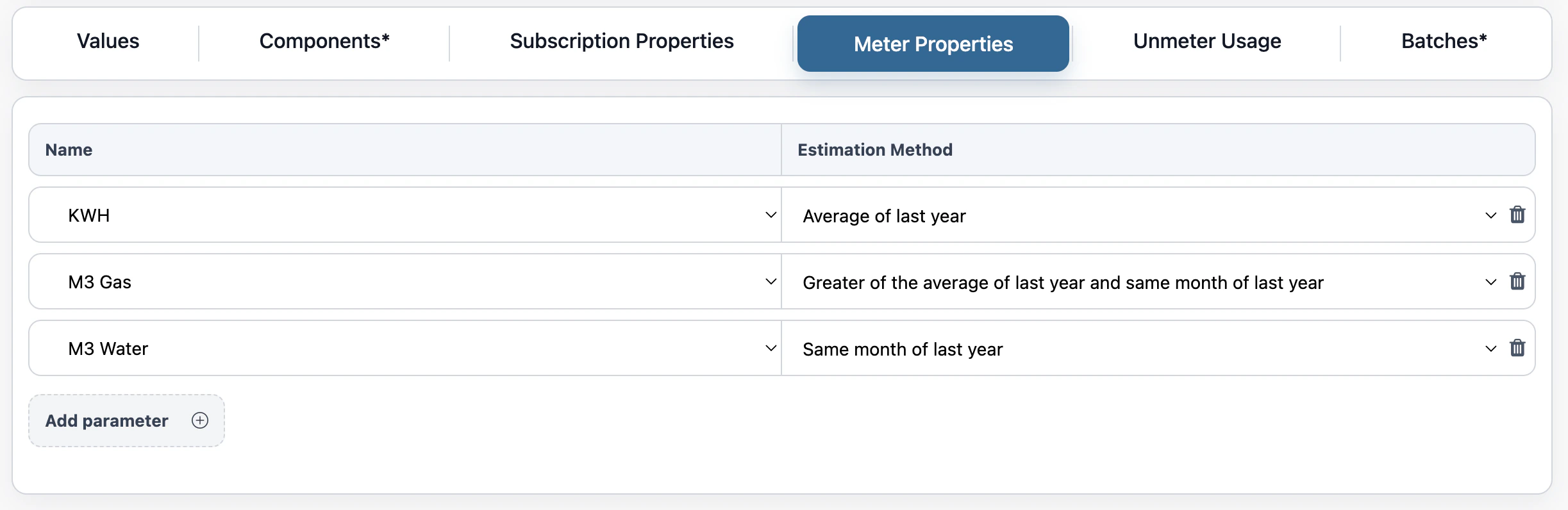
Click on the Meter Properties tab. Define the tracking hooks to receive final readings from a physical or digital meter where continuous/odometer tracking is involved. The currently supported meter property types are:- KWH
- Off-Peak Units
- Peak Units
- Cubic Meter Water
- Cubic Meter Gas
Net Consumption = Current Cycle Final Reading - Previous Cycle Final Reading).
- Example: An energy meter reads
15,000 kWhthis month. Last month it read14,200 kWh. The billing engine rates the net800 kWh.
Step 7: Setup Unmetered Usage (The “Unmetered Usage” Tab)
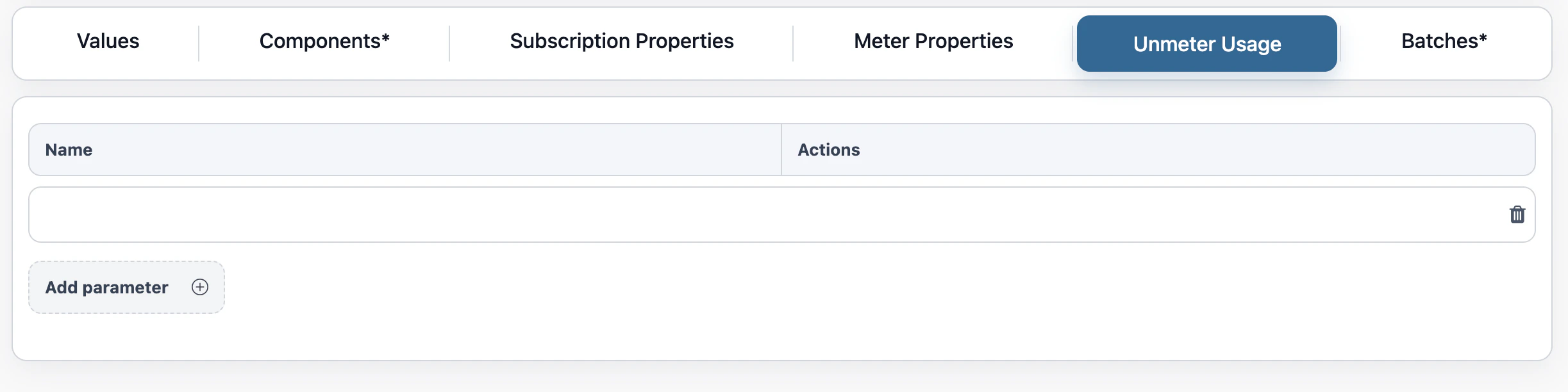
Click on the Unmetered Usage tab. Set up hooks to receive direct, already calculated consumption amounts (delta usage) where no continuous meter is involved:- Since the provided data is already the net consumption volume, the billing engine does not need to perform any subtraction or difference calculations.
- Examples: Receiving a direct record of
50 GBof bandwidth consumed or10 hoursof support time delivered during the billing period.
Step 8: Setup Bill Templates
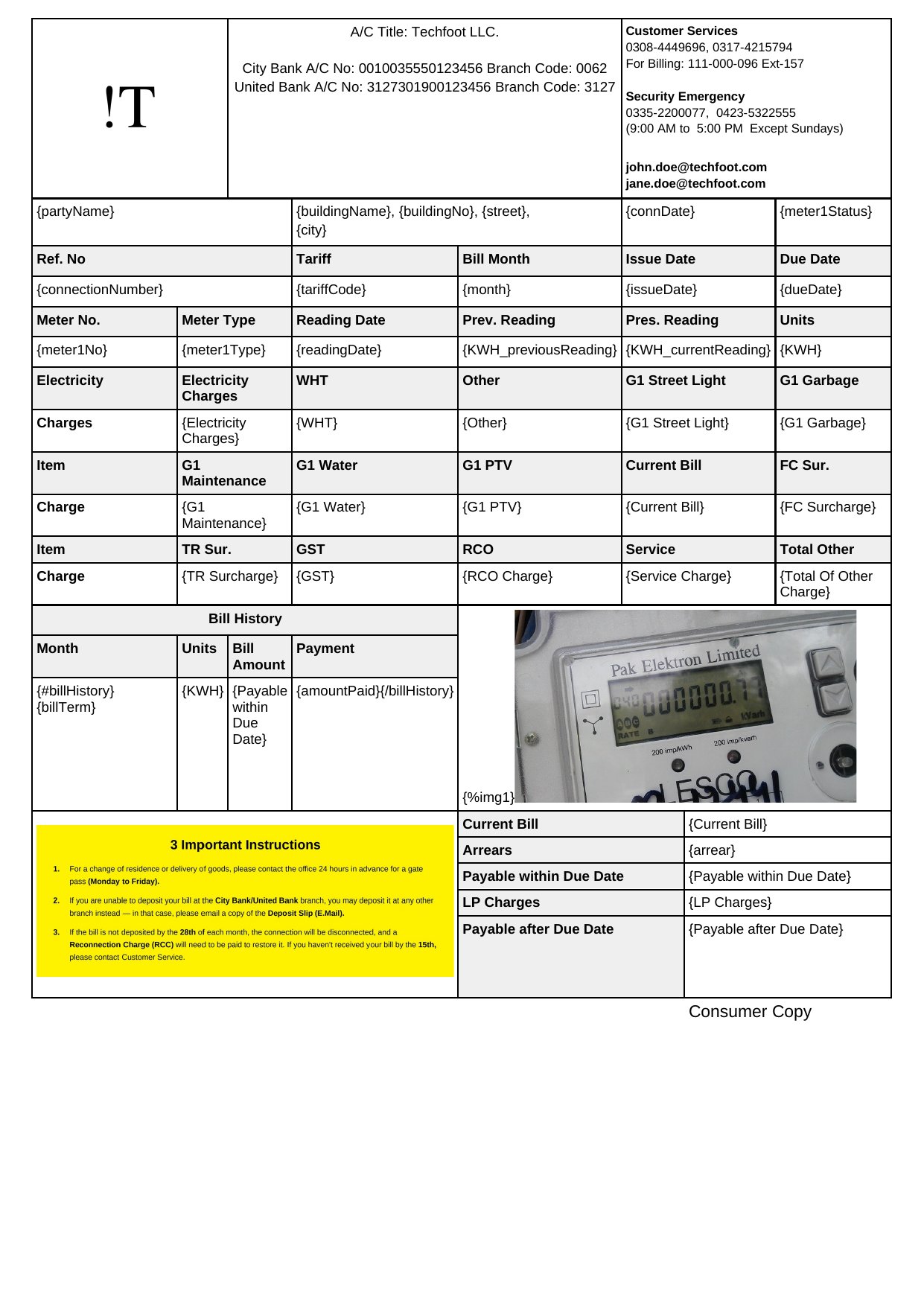
- Default Invoice Template: Attach a master invoice template—typically a Word document (.docx)—which serves as the master visual layout for customer bills. This template contains merge placeholders (enclosed in curly braces
{}) that the billing engine automatically populates when generating each bill. Placeholders come from two different sources—see Invoice Template Merge Fields below. - Default Email Template: A text file (subject + content) sent alongside the bill, using the same merge-field placeholder style as the invoice template—but referencing bill-level fields rather than per-component charges.
Invoice Template Merge Fields
Placeholders fall into two categories, and only one of them is context-specific. Fixed placeholders — always available on every Pricing Context, regardless of configuration:
Component-derived placeholders — not fixed. Each one corresponds exactly to the Name given to a Value or Component in Step 3 or Step 4. A context with a component named
Electricity Charges exposes {Electricity Charges}; one with a component named FC Surcharge exposes {FC Surcharge}. There’s no fixed list here—whatever Values and Components exist on a given context, under whatever names were chosen, become that context’s available placeholders.
A repeating bill-history table can be rendered with a loop block—
{#billHistory}...{/billHistory}—with per-row fields like {billTerm}, a meter reading placeholder, and {amountPaid} inside it. An embedded chart/image placeholder ({%img1}) is also supported.{partyName}, {meter1Type}, {KWH_currentReading}), component-derived placeholders ({Electricity Charges}, {FC Surcharge}, {GST}), and a {#billHistory} loop block, all in one .docx:
3. Lifecycle Management
A Pricing Context has only two states:
View Variants is a separate, unrelated feature: a directory view displaying all the Pricing Modules built on this context. It’s a navigation aid, not a lifecycle state.
4. Editing an Existing Context
A Created context isn’t frozen. Each structural pillar has its own rules for what can change afterward. Name and Code: Locked once created. Only the Description can be edited afterward. Default Invoice Template and Default Email Template:- Both can be updated freely at any time.
- Order can be changed.
- New Values or Components can be added.
- Existing ones can be deactivated (not deleted)—except whichever component carries the Subtotal, Late Payment, or Net Total flag. Those three can never be deactivated, since the context would no longer satisfy its mandatory requirement. Unlike reordering, deactivation does not break existing Pricing Modules.
- For Components specifically, Calculation Type (Manual/Calculated) and Payment Priority can also be updated directly.
- New Subscription Properties can be added.
- For List-type properties, new values can be added to an existing list.
- Locked once created. None can be added, and none can be edited.
- The only thing that can change is the estimation method assigned to an existing Meter Property.
- New Unmetered Usage entries can be added after creation, unlike Meter Properties.