
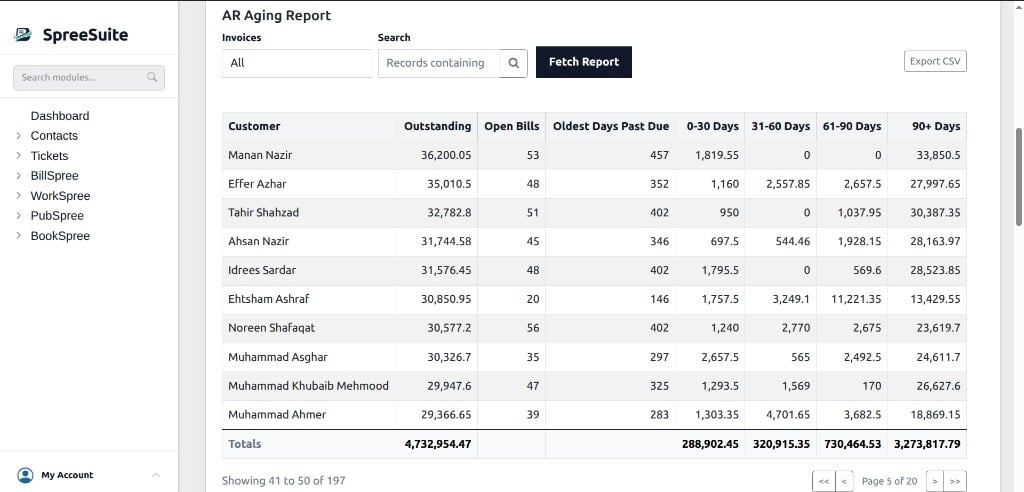
AR Aging Report on the Billing tab
Where to find it
- In the left sidebar, open Dashboard.
- Select the Billing tab.
- Scroll below the Billing–Payment chart to the AR Aging Report section.
Filters
Aging is as of today, based on each bill’s due date.
Columns
Rows are ordered by highest outstanding balance first. Results are paginated by customer (for example 10 per page).
What is included
The report includes open sale-side bills that still have a remaining balance due. It typically excludes:- Purchase invoices
- Bills in Failed, Draft, or INACTIVE status
- Bills with no remaining outstanding balance
How outstanding is calculated
Each open bill contributes its remaining balance due (updated when the bill is posted and when payments or credits are applied). Those bill-level amounts are summed per customer into Outstanding and into the matching aging bucket based on days past due. Related actions that change what you see here:- Applying a payment (allocated to open bills in due-date order)
- Posting a credit note against the customer’s balance
- Settle Bill to mark a specific invoice fully settled without recording a payment