
Overview
Subscription Bills are generated through the Term (Bill Run) process. These bills represent the recurring charges, usage-based fees, and add-ons associated with a customer’s Subscription.Step-by-Step Payment Flow
- Navigate to BillSpree on the sidebar
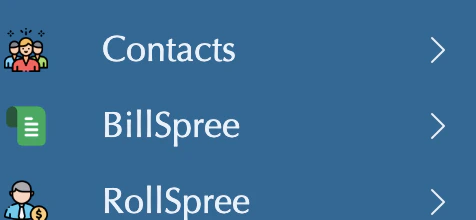
- Click on BillSpree
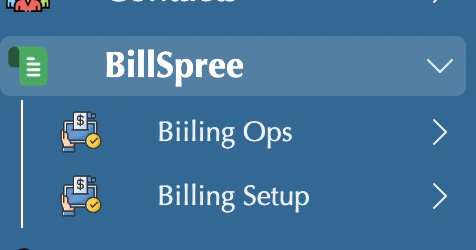
- Click on Billing Ops
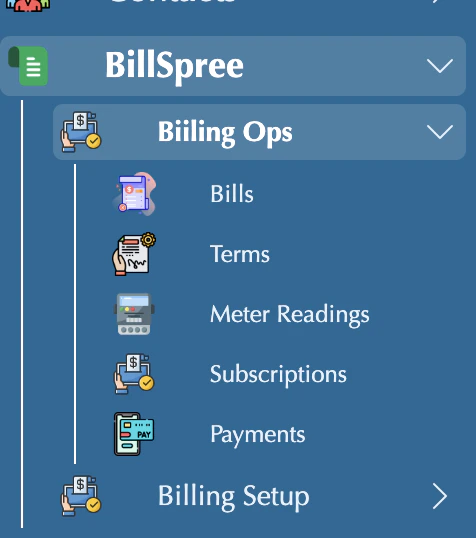
- Click on Bills
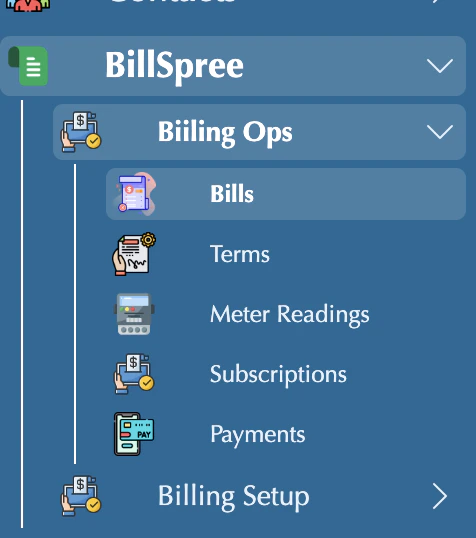
- Bill’s List View screen
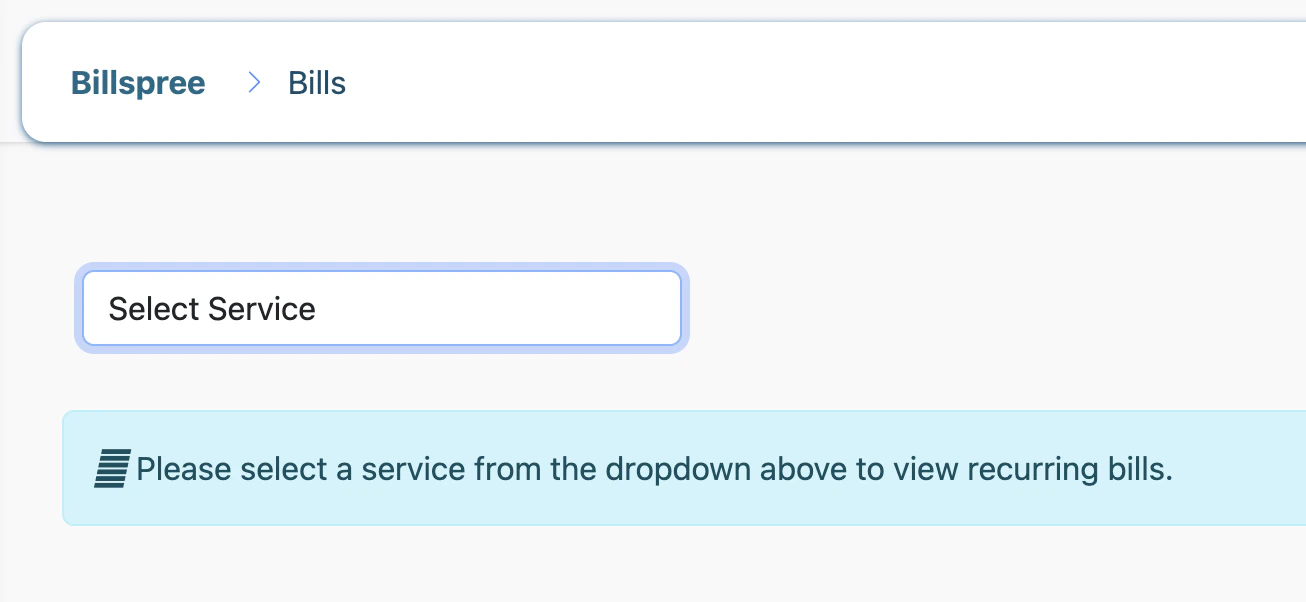
- Select your Pricing Context
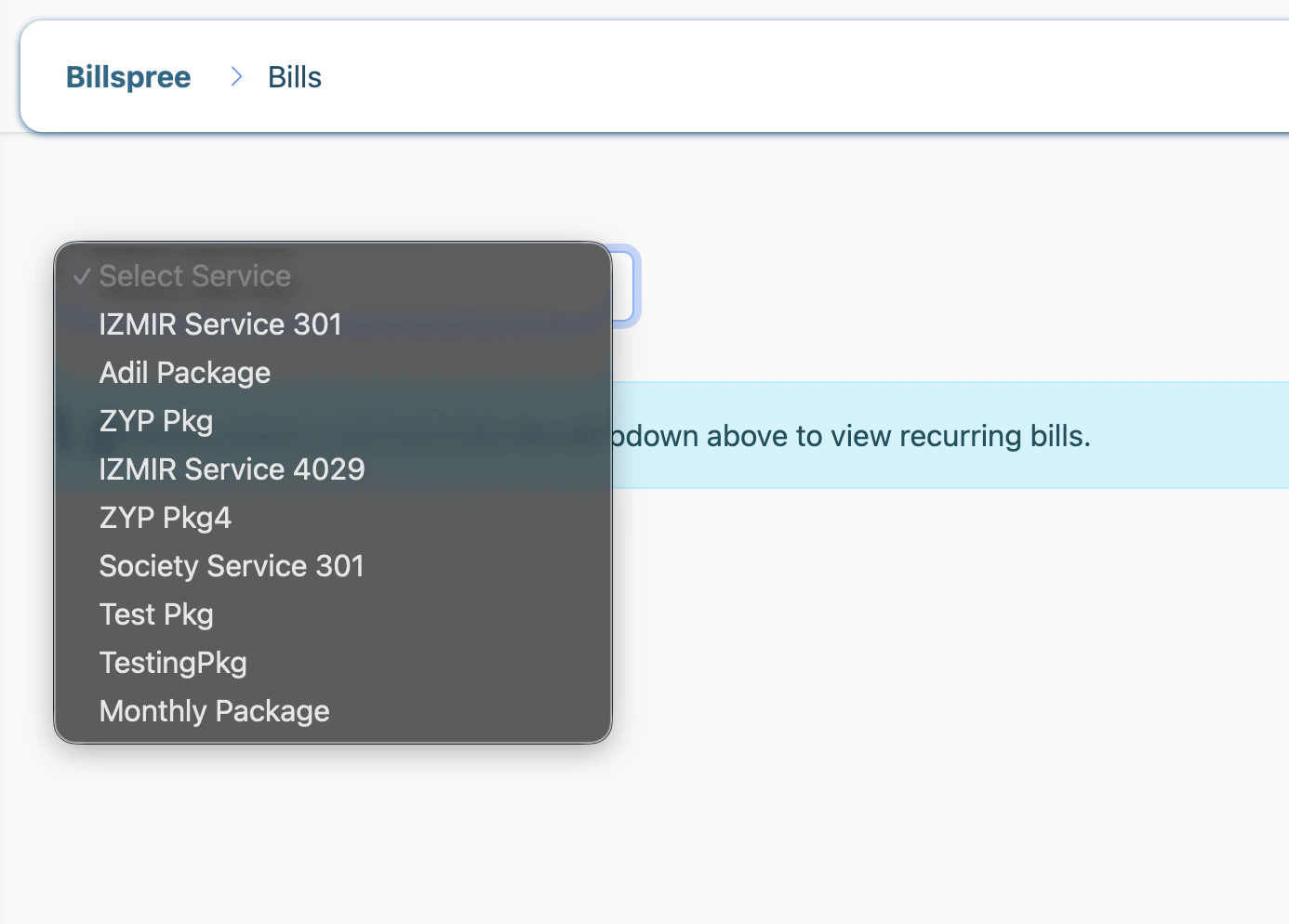
- Your Bills are showing in the list
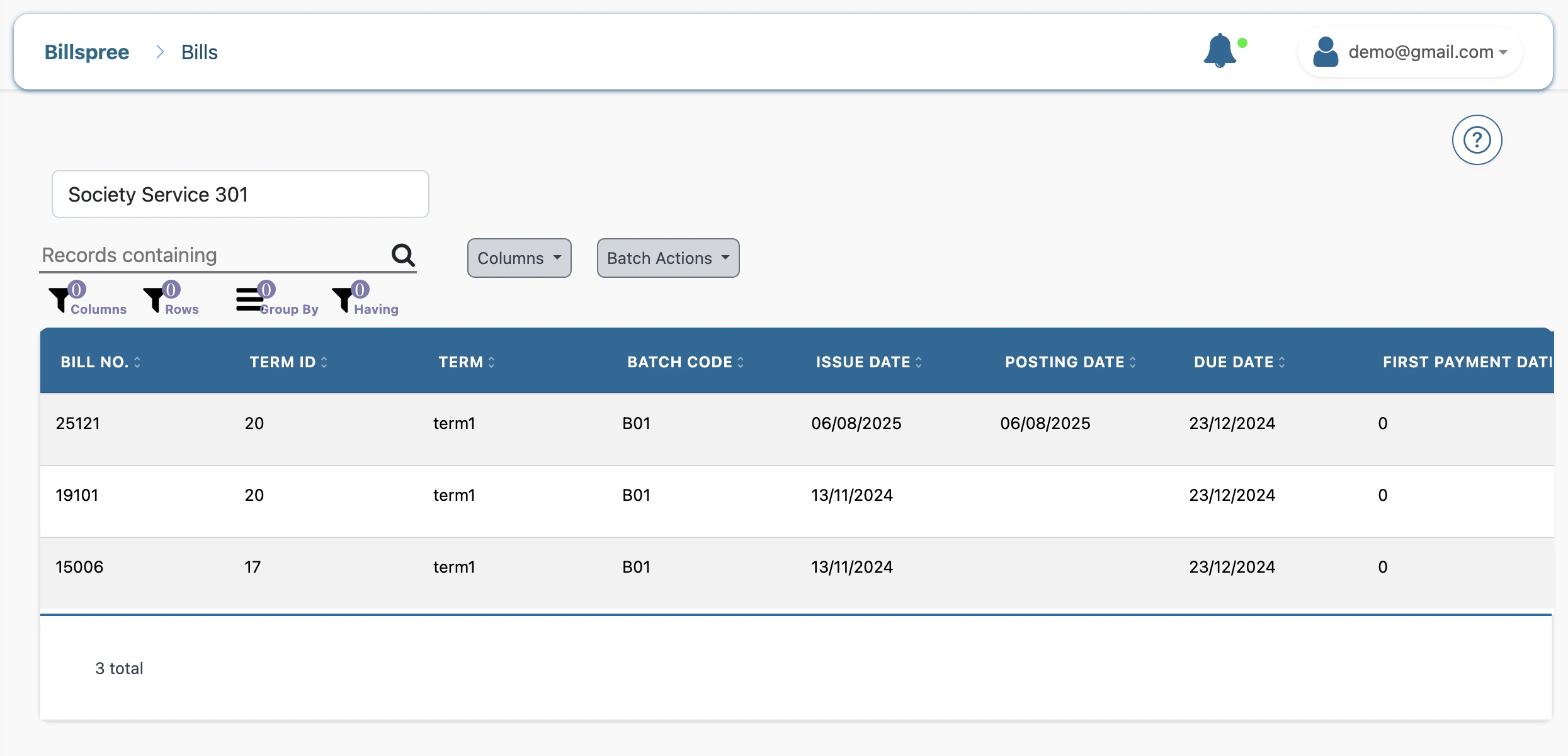
- Click on your Bill
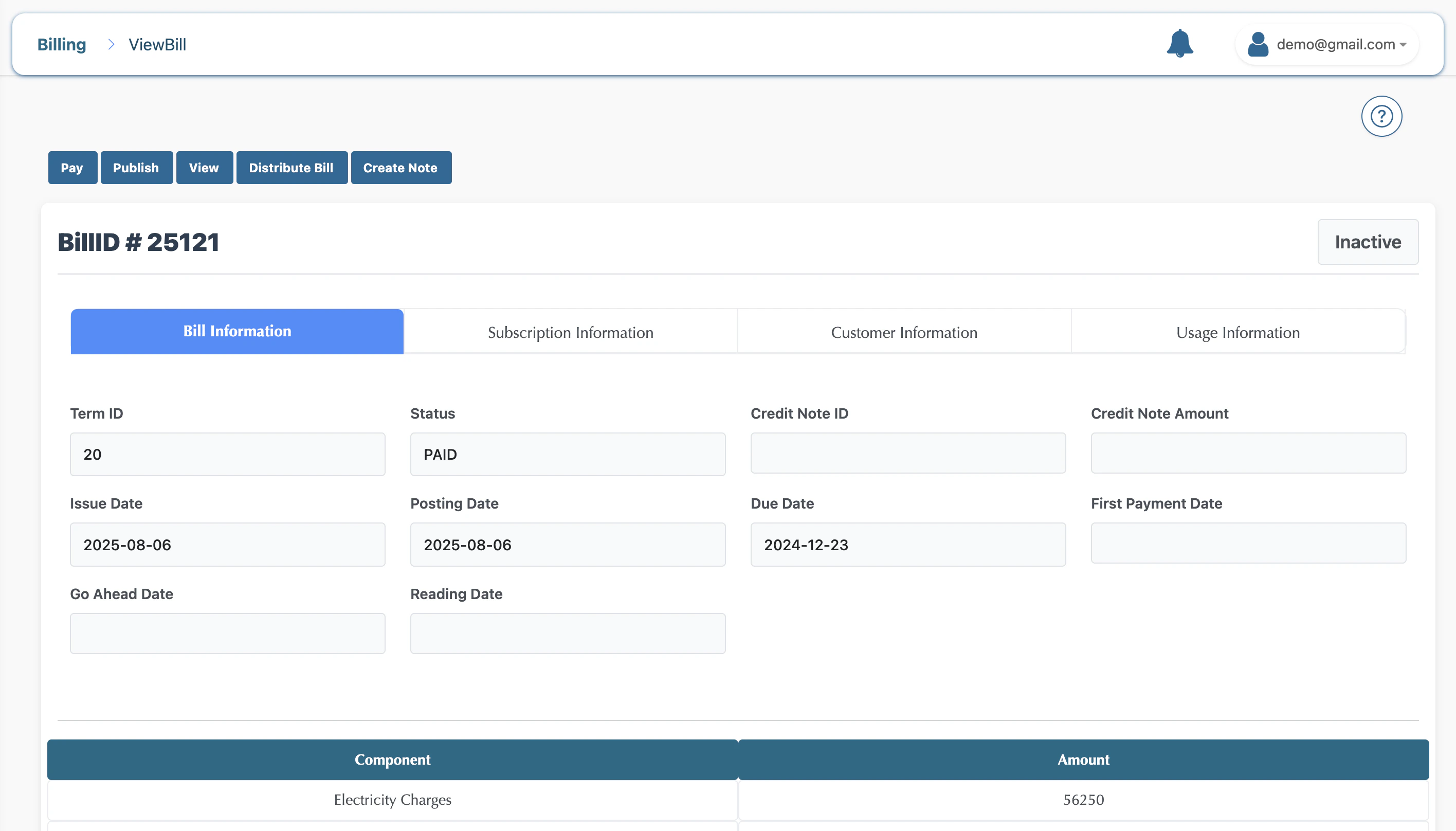
- Click on Pay, and the modal opens
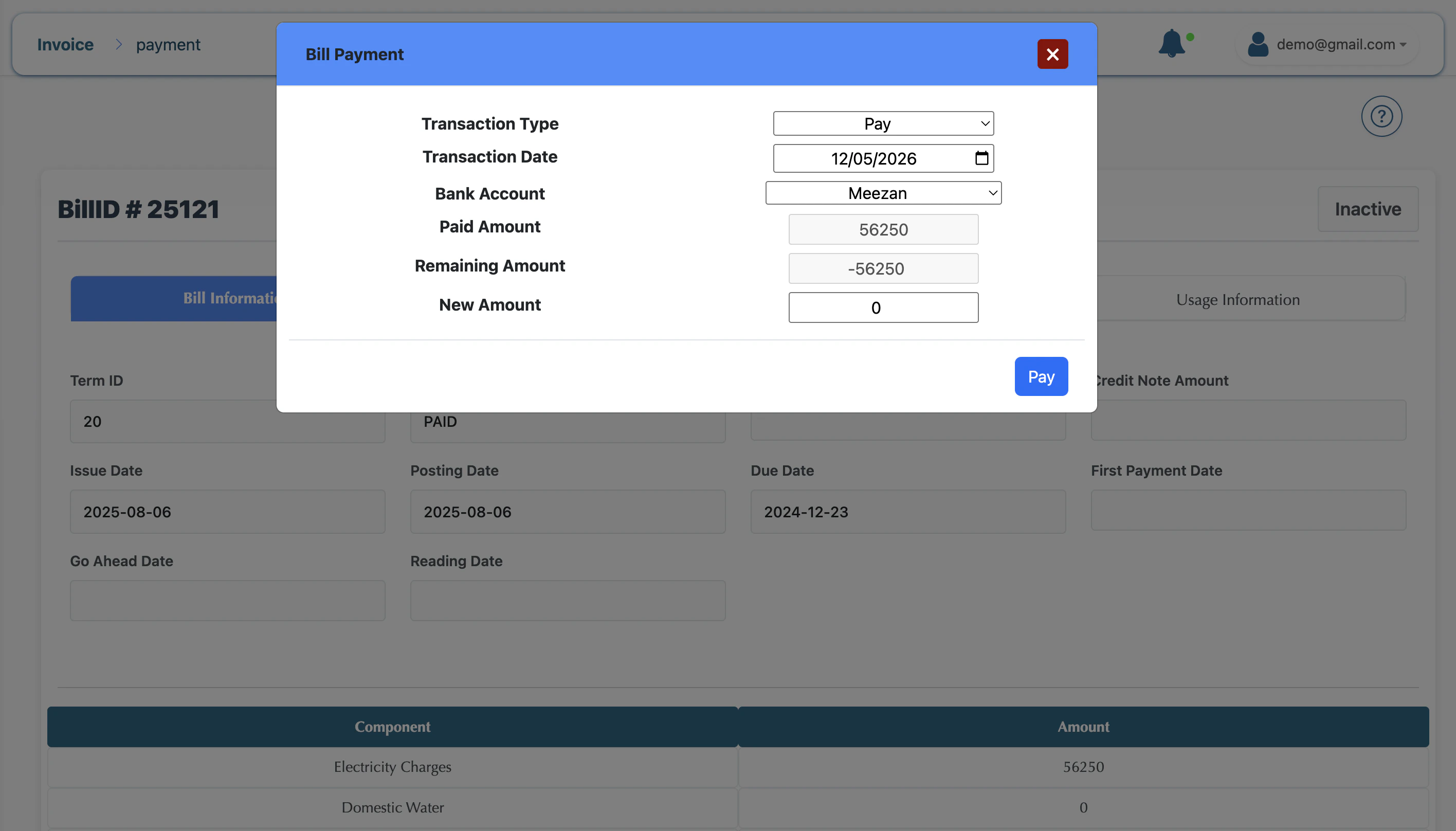
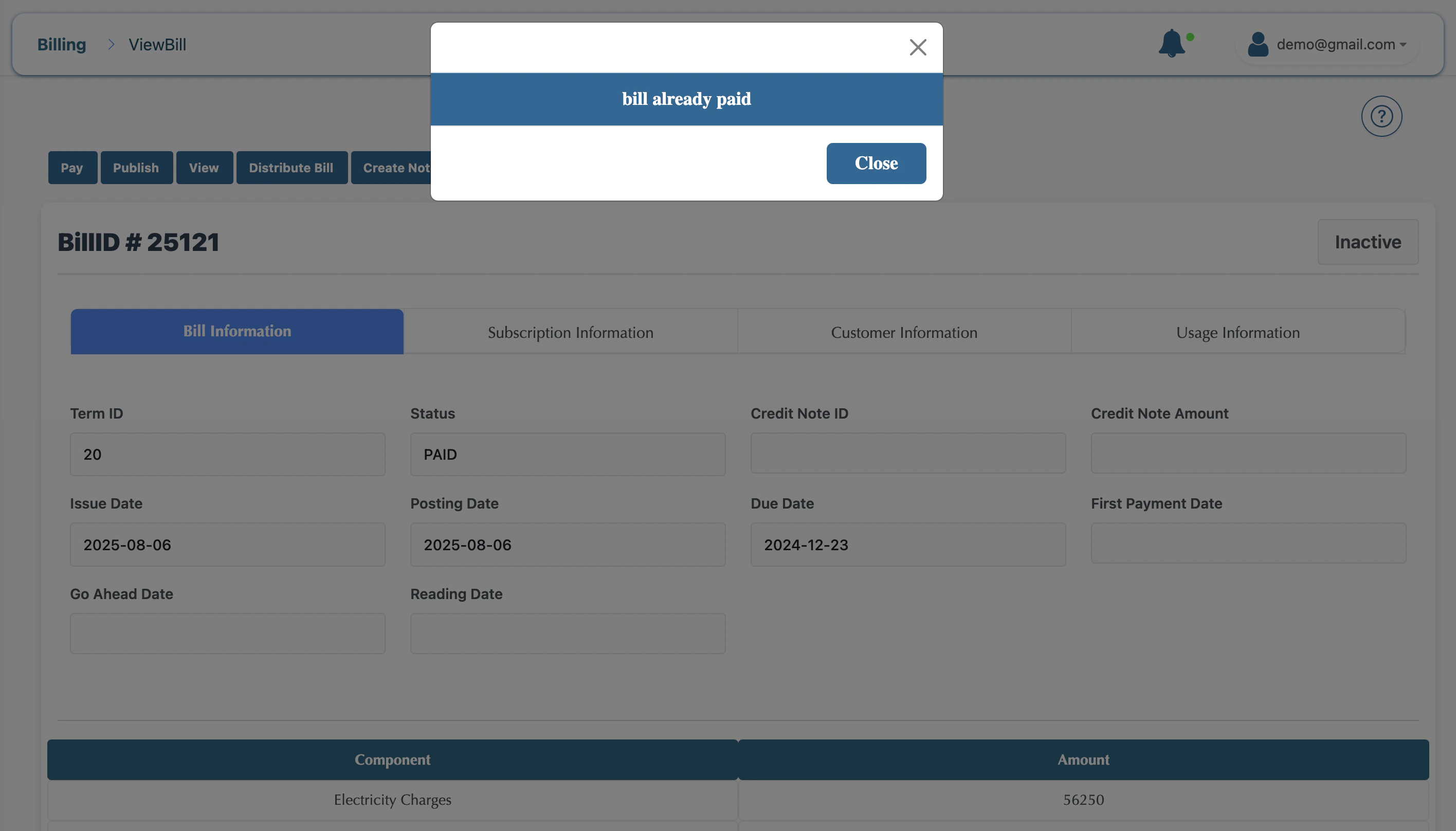
Post Steps
When payment is done, hold for 10 mins to roll upWhat is Subledger Rollup?
In a business, there are two levels of accounting records:- Subledgers (Detailed books): These contain all the small daily transactions.
- General Ledger (GL) (Main book). This shows only the summary totals.
Taking all the details from the subledgers and adding them up into the main General Ledger.
Example:
Let’s say you have a shop.- You sell goods to 150 different customers on credit.
- In the Accounts Receivable Subledger, you keep detailed records of every customer (how much each owes, when they paid, etc.).
So you do a Rollup: → You add up all the customer balances
→ And put only one total in the General Ledger:
“Accounts Receivable = Rs. 8,50,000” This is called Subledger Rollup.
Step-By-Step RollUp Verification Flow
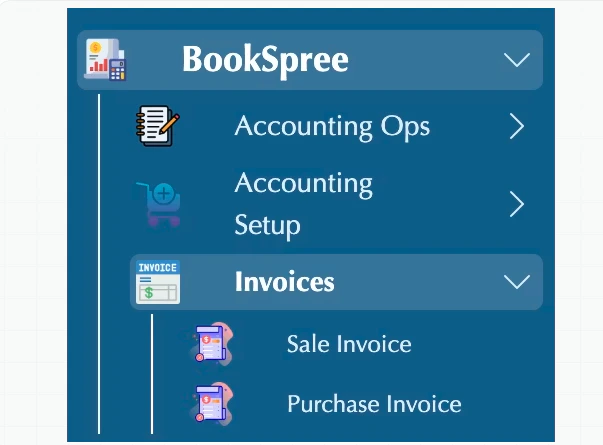
- Navigate to BookSpree on the sidebar
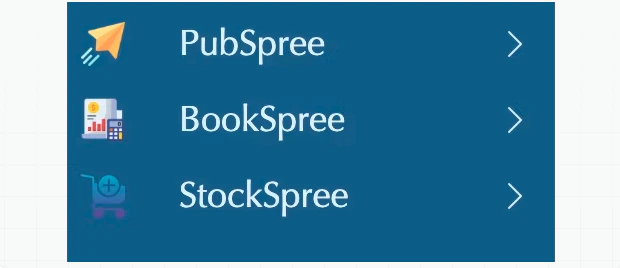
- Click on BookSpree
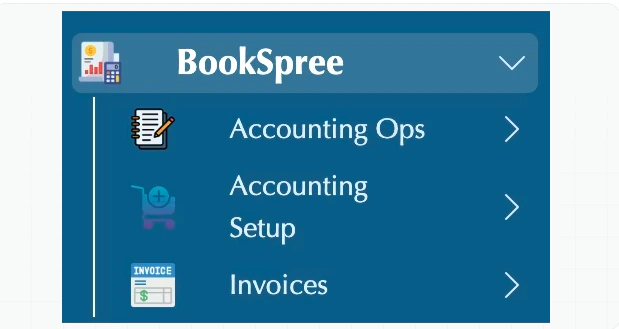
- Click on Invoices
Key Statuses
- Draft: The bill is being calculated and can be adjusted.
- Posted: The bill is finalized, but may not yet be visible to the customer.
- Published: The bill is finalized and available for the customer to view/pay.
- Paid: The payment has been received, and the balance is cleared.