
Metered Billing enables customer billing based on actual consumption captured through physical meters such as Electric, Gas, or Water meters. The system supports:Documentation Index
Fetch the complete documentation index at: https://docs.techfootintl.com/llms.txt
Use this file to discover all available pages before exploring further.
- Meter assignment to subscriptions or connections
- Meter reading uploads
- Consumption-based billing
- Active and inactive meter management
- Batch-based billing processing Lifecycle
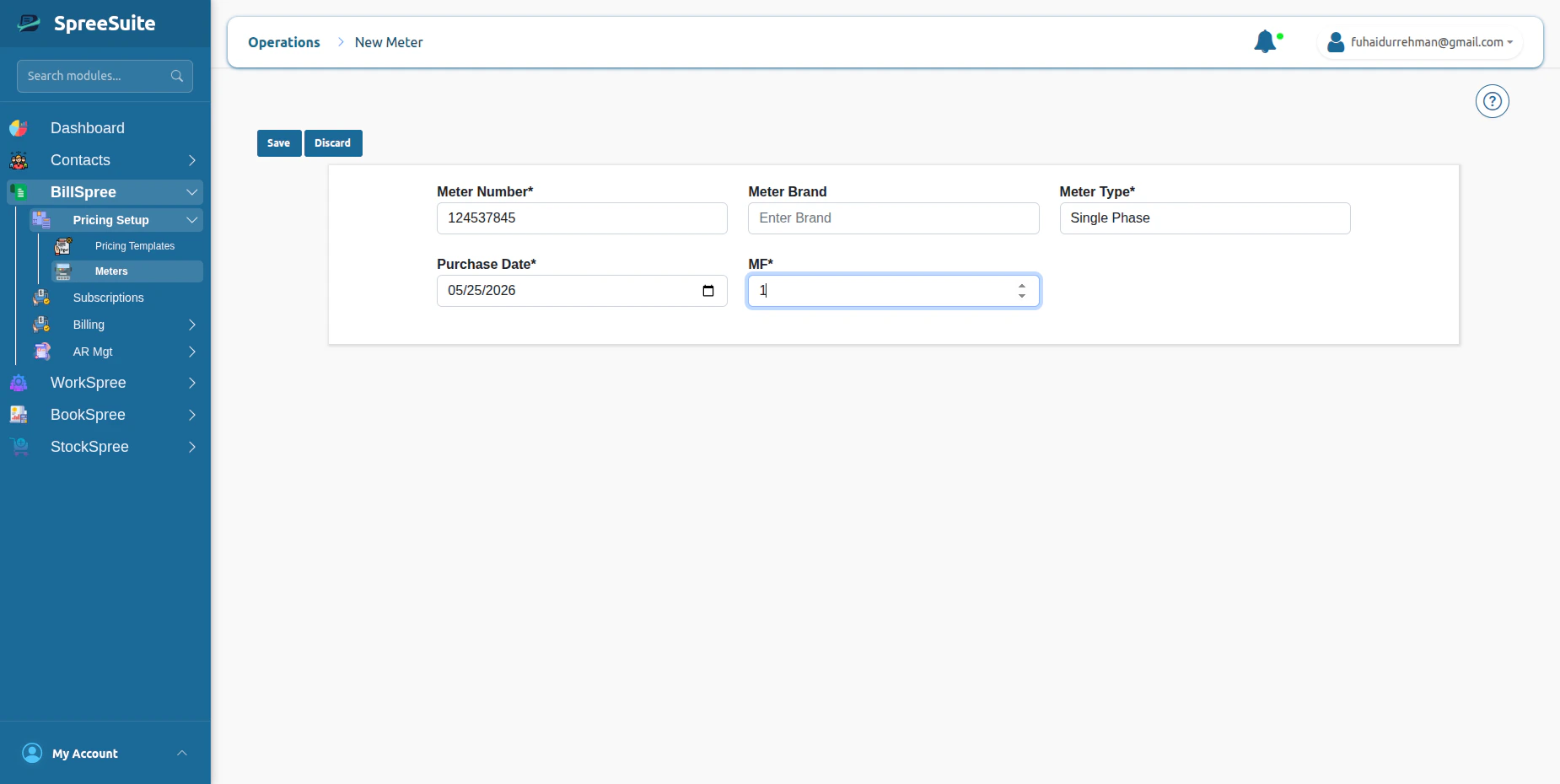
Create Meter
1- Go to Billspree → Pricing Templates →Meters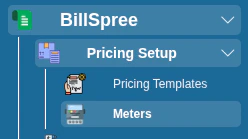
Where do we assign meters?
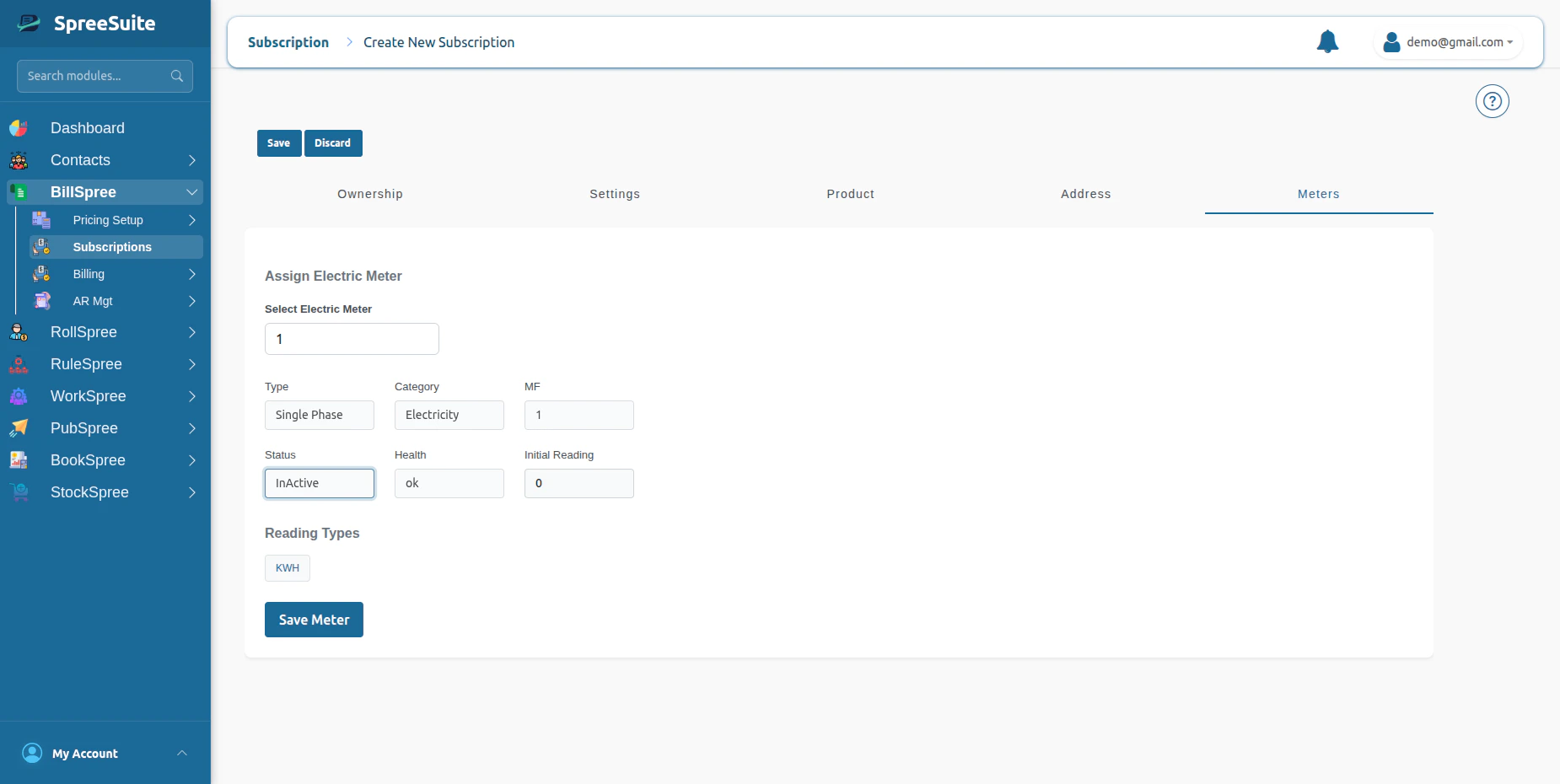
1- Go on Subscription screen click new Button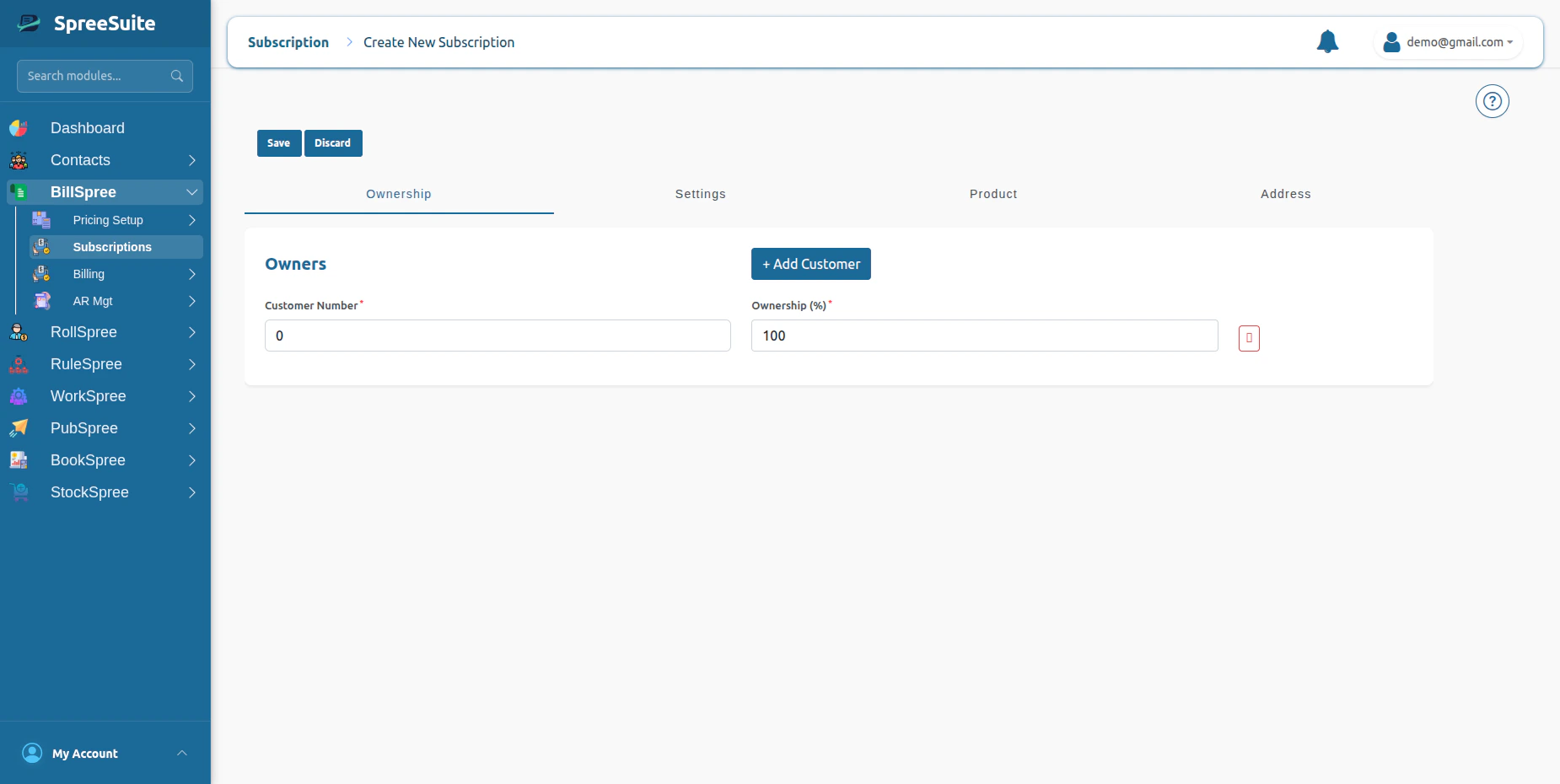
Upload Meter Readings
Before billing can be processed, meter readings must first be uploaded into the system. These readings represent the customer’s actual utility consumption for a billing cycle. 1- Go to Billspree →Billing →Meter Readings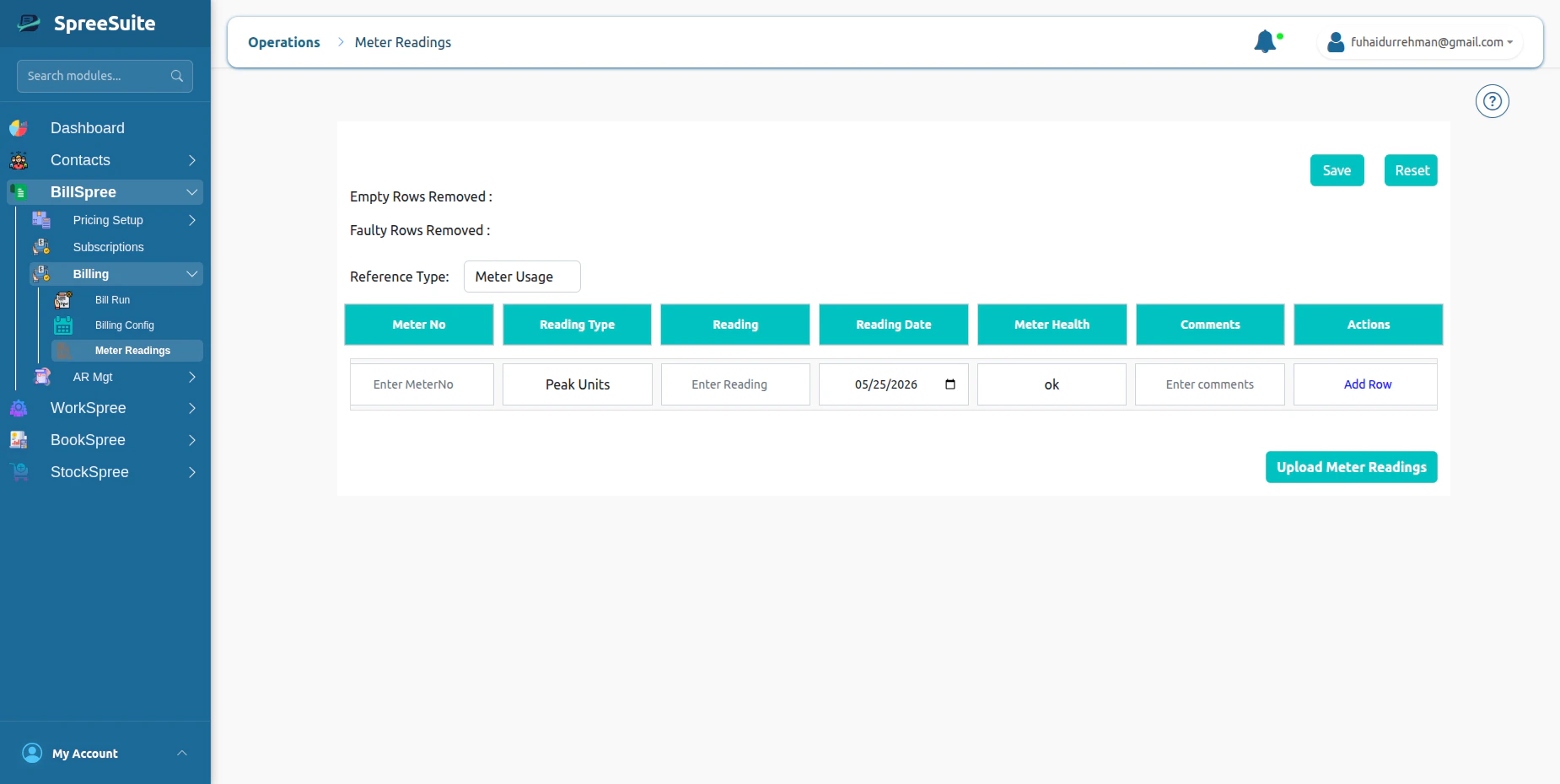
Assigning Meters
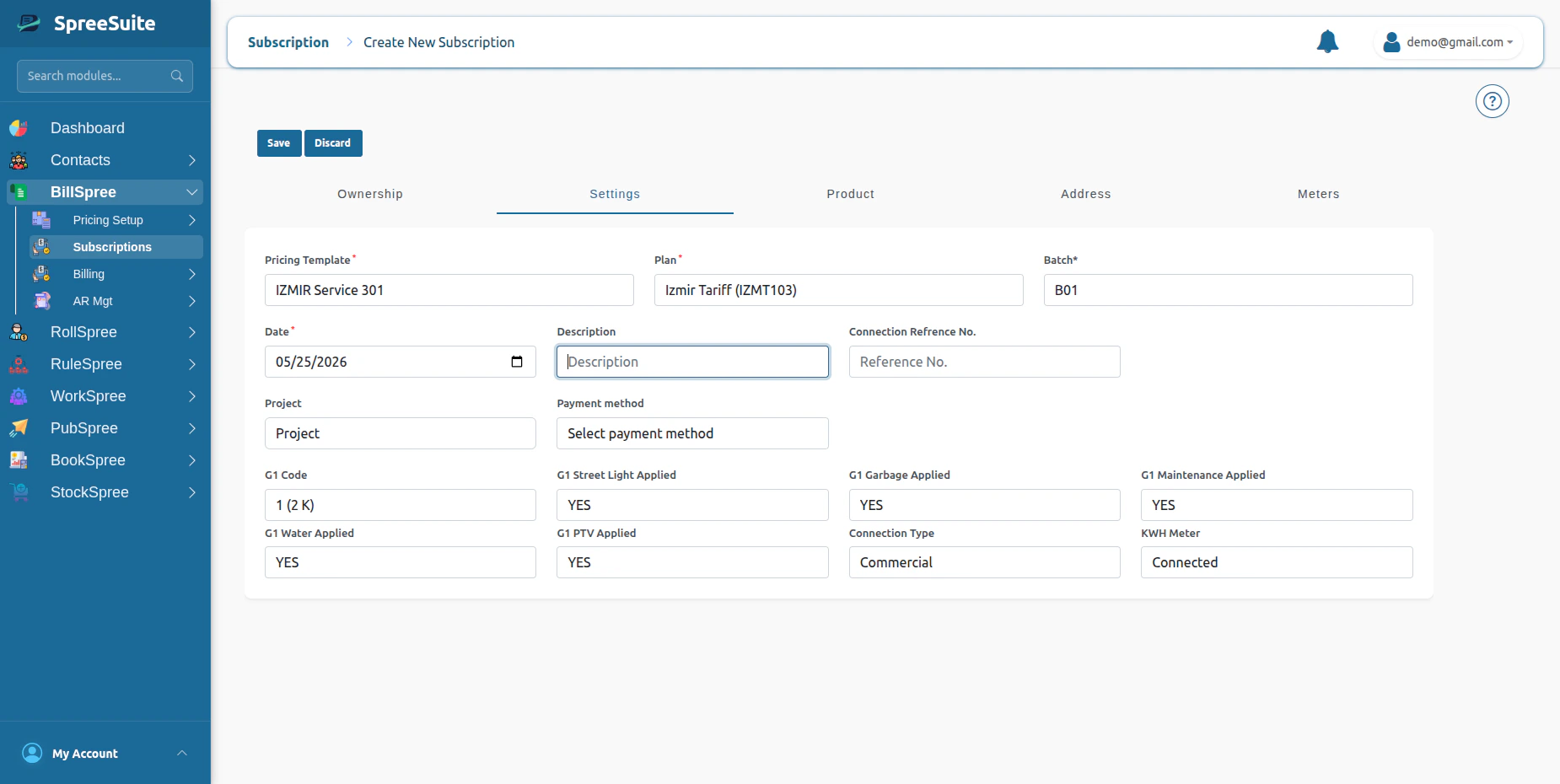
Meters are assigned from the Subscription screen.Steps
- Open the Subscription screen\
- Navigate to the Settings tab\
- Select:
- Pricing Template
- Plan Variant
- Batch\
Open the Meter tab\
Select the required meter from the dropdown\
Meter Connection Types
The platform supports two meter assignment flows.New Connection Flow
During creation of a new connection, meters can be assigned directly from the Meters tab. Supported meter types:
Electric\
Gas\
Water\
Meter Number is provided\
Initial Reading is captured\
Existing Connection Flow
Meters can also be assigned to existing customer connections.Steps
Open Connection Details\
View Active Meters\
Use the Assign Meter flow\
Meter Assignment API
Request Body
| Field | Description |
|---|---|
| connectionID | Customer connection identifier |
| meterNumber | Meter to assign |
| connectionDate | Meter activation date |
| status | Assignment status |
Assign Meter Component Behavior
The Assign Meter flow:
Loads all inactive/unassigned meters\
Filters meters by type:\
Electric\
Gas\
Water\
Allows selection and assignment to the connection\
Active vs Inactive Meters
Active Meter
An active meter is:
Currently linked to a customer connection\
Used for billing calculations\
Displayed under Active Meter Details\
Inactive Meter
An inactive meter is:
Not assigned to a connection\
Available for future assignments\
Excluded from billing operations\
Metered Billing Processing
Billing is generated using:
Rate Lists\
Charge Rules\
Plans\
Add-ons\