> ## Documentation Index
> Fetch the complete documentation index at: https://docs.techfootintl.com/llms.txt
> Use this file to discover all available pages before exploring further.
# How it Works
> Set up API tokens and AI Configuration, assign them to a user, then ask Spree AI in chat.
Spree AI only works after it is allowed to reach BillSpree and an AI Configuration is assigned to the user. Setup comes first; chat comes after.
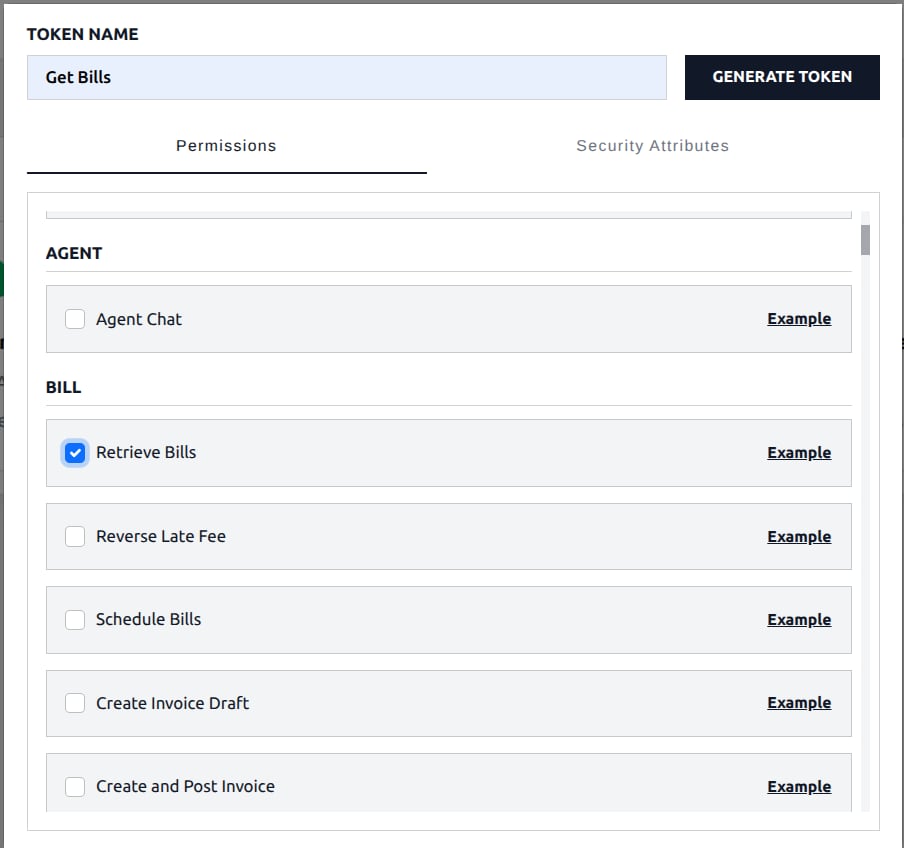
## 1. Scope an API token
Create an API token and choose which BillSpree actions Spree AI may use (for example **Retrieve Bills** or **Agent Chat**). The token acts as that user for the permissions you select.
 ## 2. Confirm the key in API Keys
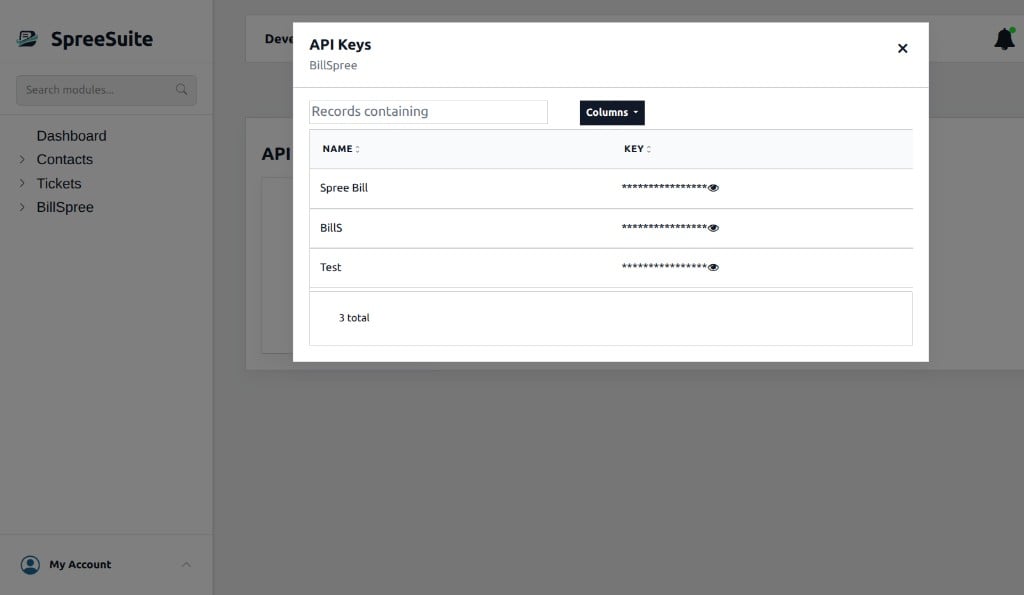
After you generate the token, it appears under **API Keys** in BillSpree. Spree AI uses this key when it looks up billing data.
## 2. Confirm the key in API Keys
After you generate the token, it appears under **API Keys** in BillSpree. Spree AI uses this key when it looks up billing data.
 ## 3. Create an AI Configuration
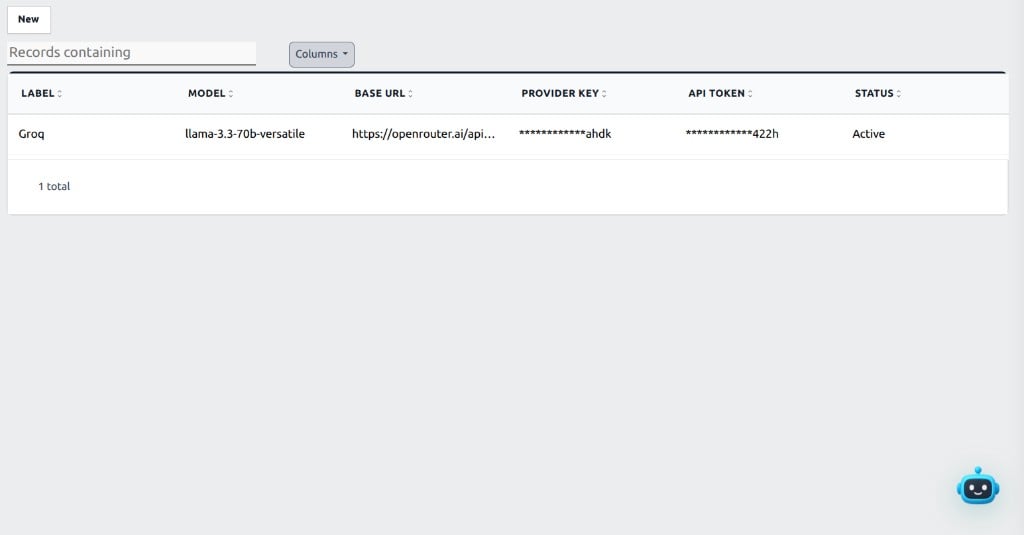
Open **Spree AI** setup and add a configuration: provider, model, provider key, and the BillSpree API token. Set the configuration to **Active**.
## 3. Create an AI Configuration
Open **Spree AI** setup and add a configuration: provider, model, provider key, and the BillSpree API token. Set the configuration to **Active**.
 ## 4. Assign the configuration to a user
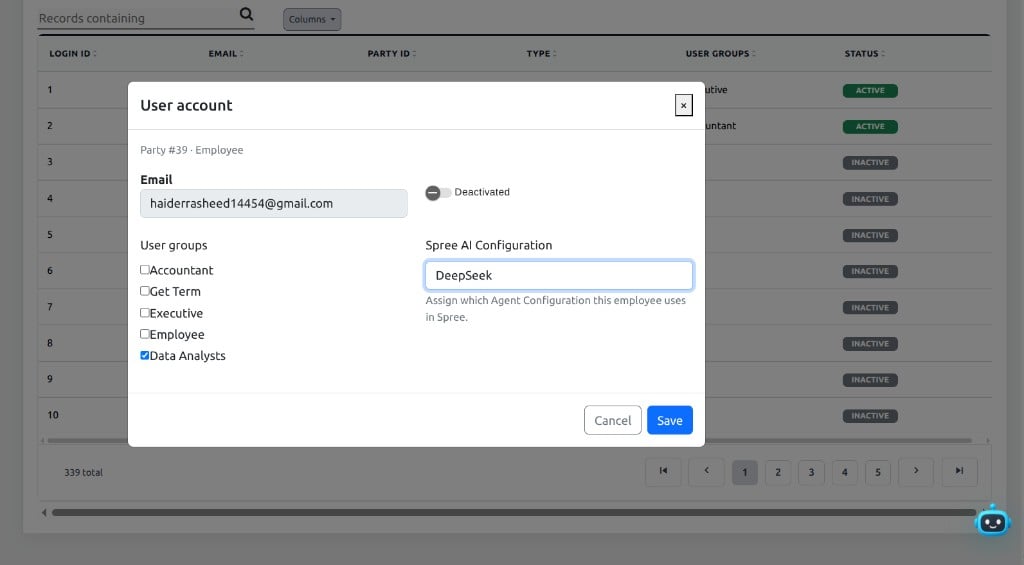
On the user account, set **Spree AI Configuration** to the active configuration that employee should use.
## 4. Assign the configuration to a user
On the user account, set **Spree AI Configuration** to the active configuration that employee should use.
 ## 5. Ask in chat
When an active configuration is assigned, the Spree AI robot opens in SpreeSuite. Ask in product language — Spree AI matches the question to billing data the token is allowed to see, then replies in chat.
For example questions, see [What You Can Ask](/spree-ai/what-you-can-ask).
## 5. Ask in chat
When an active configuration is assigned, the Spree AI robot opens in SpreeSuite. Ask in product language — Spree AI matches the question to billing data the token is allowed to see, then replies in chat.
For example questions, see [What You Can Ask](/spree-ai/what-you-can-ask).