> ## Documentation Index
> Fetch the complete documentation index at: https://docs.techfootintl.com/llms.txt
> Use this file to discover all available pages before exploring further.
# Monthly Sales and Payments
> Revenue billed and payments collected for the period, side by side.
Revenue billed and payments collected for the period, side by side — one bar chart, with drill-down detail behind each bar.
## Chart
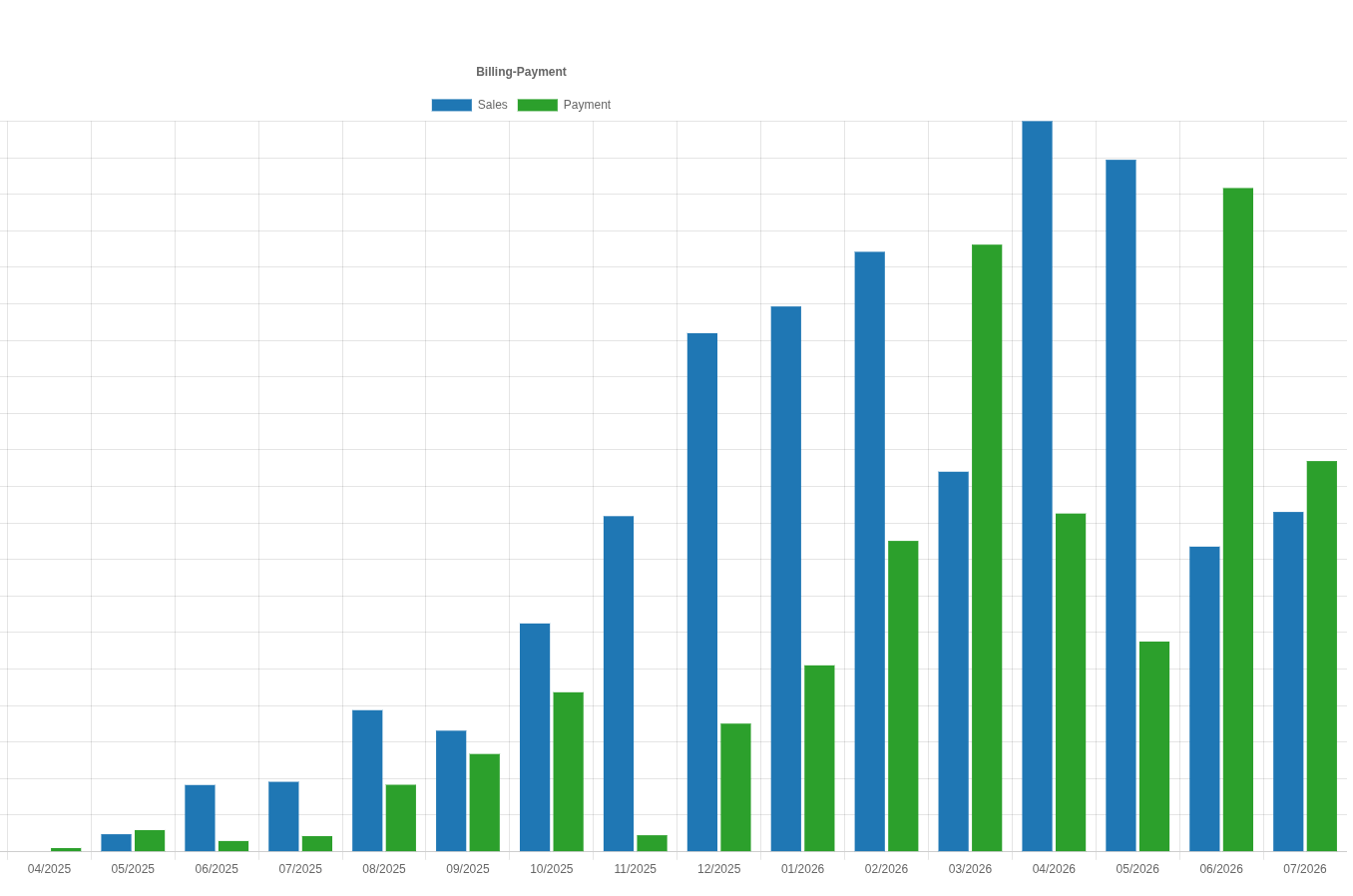
Each month shows two bars: **Sales** (billed revenue for that month) and **Payment** (amount actually collected in that month). Reading them side by side across a date range makes it easy to spot months where billing outpaced collections, or vice versa.
 ## Drilling into a bar
Clicking either bar for a given month opens a **Details** panel below the chart, with the underlying bill-level records for that month.
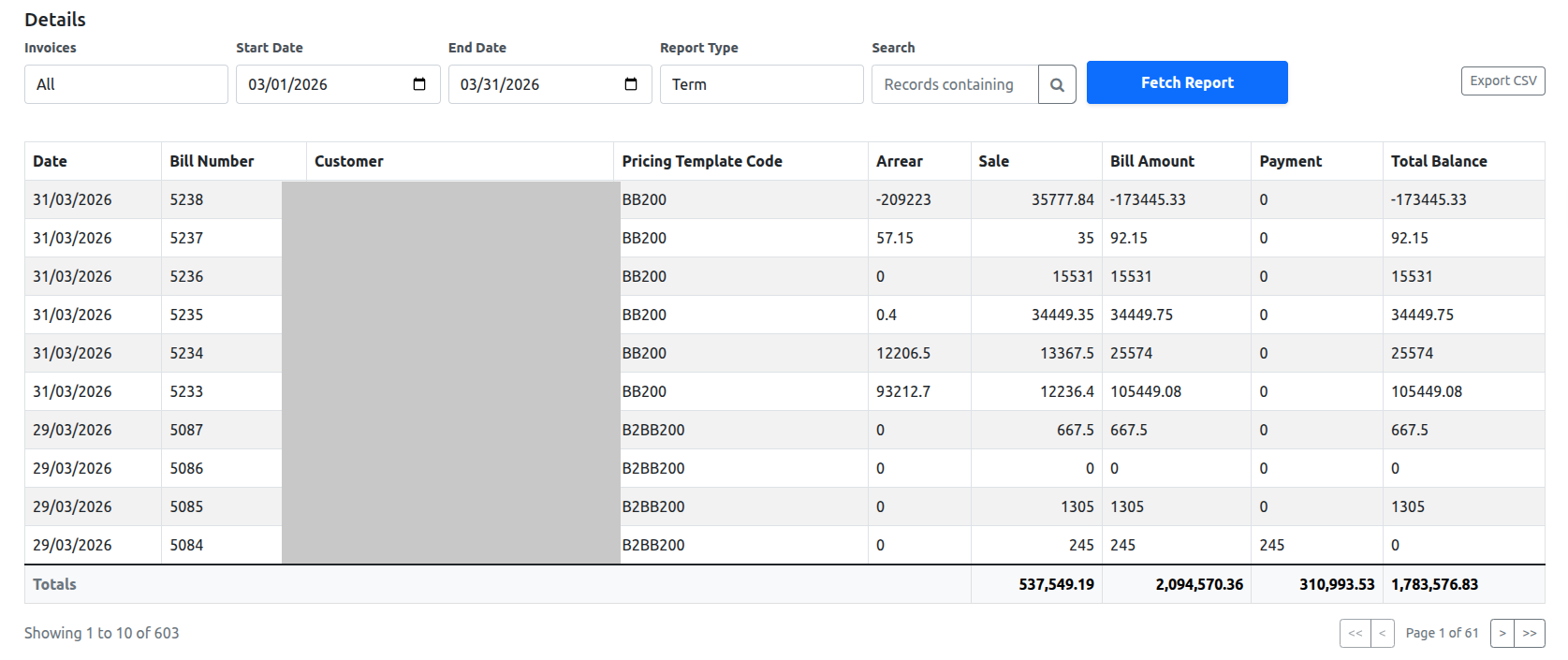
* Clicking a **Sales** bar filters the Details panel to **Report Type: Term**.
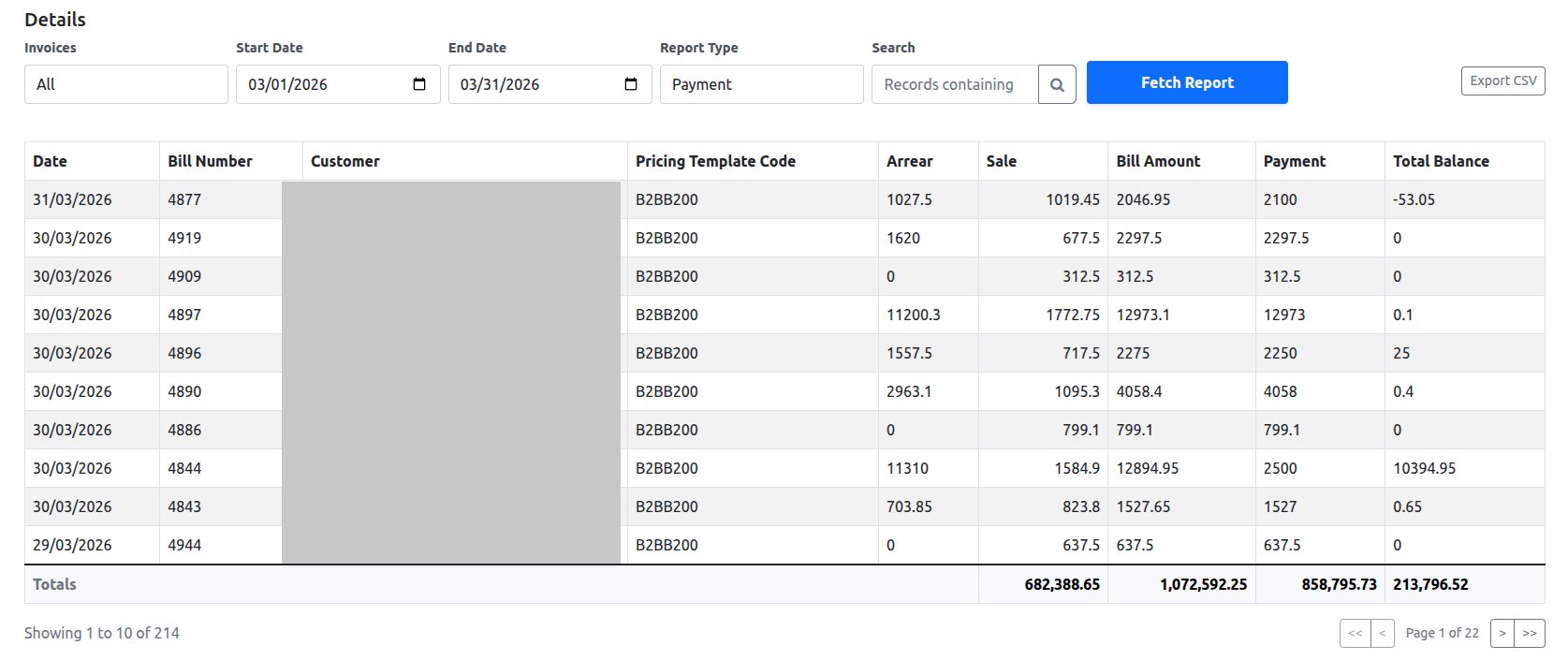
* Clicking a **Payment** bar filters the Details panel to **Report Type: Payment**.
The Details panel also has its own filters — **Invoices**, **Start Date**, **End Date**, **Report Type**, and a free-text **Search** — so you can re-run it for a different month or narrow it down further without going back to the chart.
## Drilling into a bar
Clicking either bar for a given month opens a **Details** panel below the chart, with the underlying bill-level records for that month.
* Clicking a **Sales** bar filters the Details panel to **Report Type: Term**.
* Clicking a **Payment** bar filters the Details panel to **Report Type: Payment**.
The Details panel also has its own filters — **Invoices**, **Start Date**, **End Date**, **Report Type**, and a free-text **Search** — so you can re-run it for a different month or narrow it down further without going back to the chart.
 The Details table columns:
| Column | Description |
| :-------------------- | :----------------------------------------- |
| Date | Date of the bill record |
| Bill Number | The bill's identifier |
| Customer | Customer the bill belongs to |
| Pricing Template Code | Pricing code associated with the bill |
| Arrear | Outstanding balance carried into this bill |
| Sale | Billed amount for the period |
| Bill Amount | Total bill amount |
| Payment | Amount paid against the bill |
| Total Balance | Remaining balance after payment |
A **Totals** row at the bottom sums Sale, Bill Amount, Payment, and Total Balance across every record matching the current filters — not just the 10 shown on the current page.
## Exporting
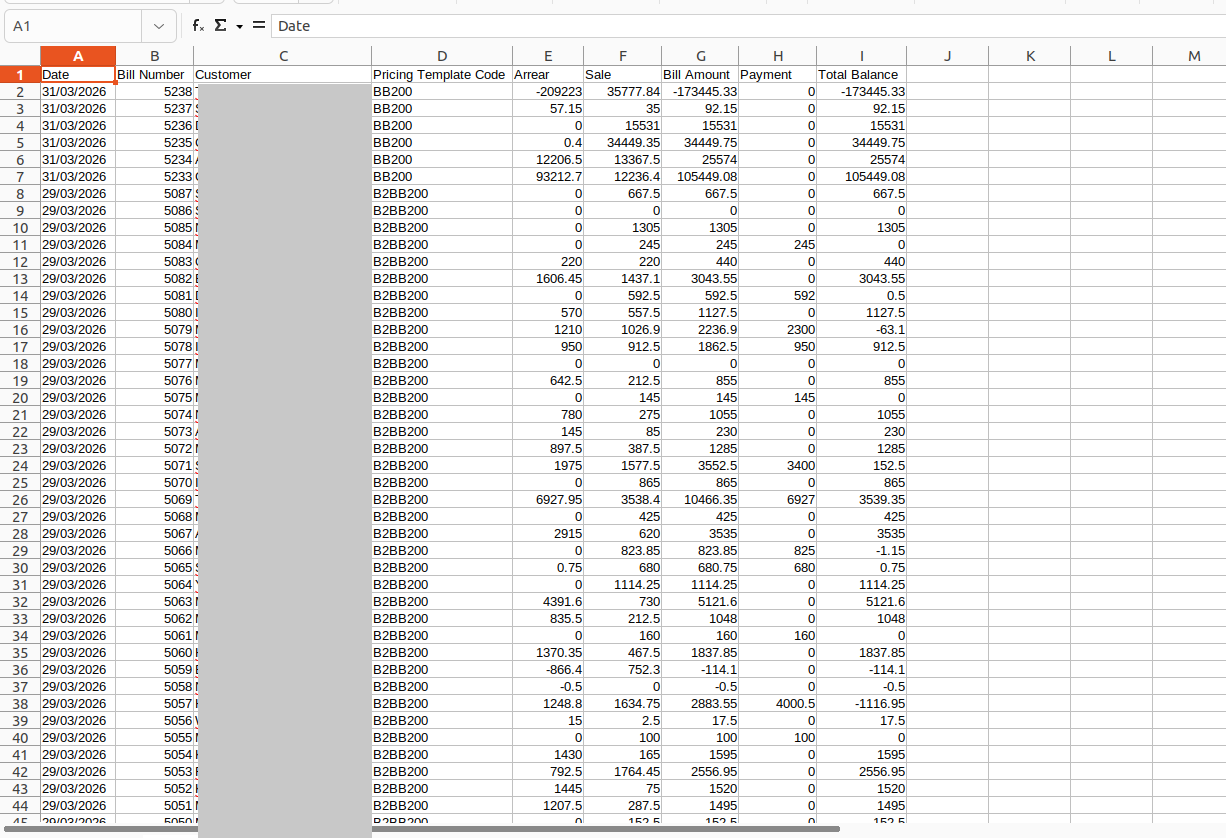
**Export CSV** downloads the full filtered result set (all pages, not just the visible 10 rows) as a spreadsheet with the same columns as the Details table.
The Details table columns:
| Column | Description |
| :-------------------- | :----------------------------------------- |
| Date | Date of the bill record |
| Bill Number | The bill's identifier |
| Customer | Customer the bill belongs to |
| Pricing Template Code | Pricing code associated with the bill |
| Arrear | Outstanding balance carried into this bill |
| Sale | Billed amount for the period |
| Bill Amount | Total bill amount |
| Payment | Amount paid against the bill |
| Total Balance | Remaining balance after payment |
A **Totals** row at the bottom sums Sale, Bill Amount, Payment, and Total Balance across every record matching the current filters — not just the 10 shown on the current page.
## Exporting
**Export CSV** downloads the full filtered result set (all pages, not just the visible 10 rows) as a spreadsheet with the same columns as the Details table.